OverMox App Console
The Console panel shows system messages about what’s happening in OverMox: errors, warnings, and informational logs. Use it to troubleshoot asset issues, connection problems, and other application-level events.
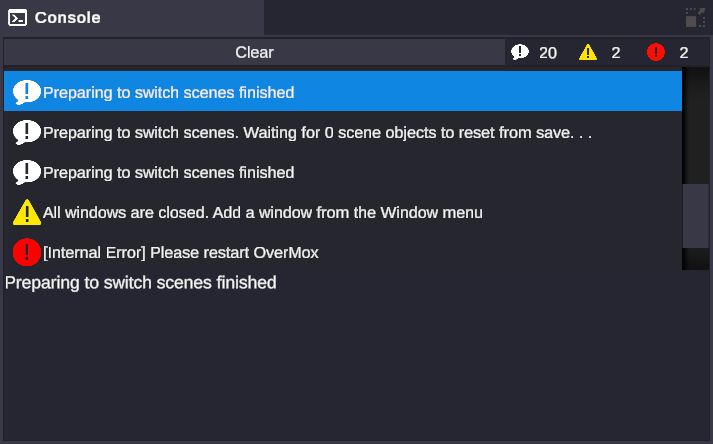
You can also open the Console via Window > General > Console.
The status bar at the bottom of the screen always shows the most recent message with its icon, acting as a quick-glance indicator. Click the status bar to open a Console Dialog popup without adding the panel to your layout.
Message Types
Section titled “Message Types”Each message has an icon and color indicating its severity:
| Type | Color | What It Means |
|---|---|---|
| Info | White | General status updates: asset loads, save file backups, dependency resolution |
| Warning | Yellow | Non-critical issues: unsupported formats, missing meta files, animation clip not found |
| Error | Red | Failures: loading/saving errors, server auth failures, import failures, connection errors |
Internal exceptions display as [Internal Error] Please restart OverMox.
Message Format
Section titled “Message Format”Messages display as [Prefix] Message text, where the prefix indicates the source system:
- [Server]: API and authentication messages
- [Loading Error]: Asset loading failures
- [Saving Error]: Save file problems
- [Material Import]: Material and texture issues
- [Controller Connection Error]: Connection to the Controller app
- [Asset]: Asset pipeline messages
- [Debug]: Debug-level information
Some messages have no prefix and display just the message text. No timestamps are shown.
Controls
Section titled “Controls”Filter Toggles
Section titled “Filter Toggles”Three toggle buttons at the top of the panel let you show or hide each message type (Info, Warnings, Errors). Each button shows a count badge with the number of messages of that type. Filter states are saved per project.
Click Clear to remove all messages and reset the counters.
Scrolling
Section titled “Scrolling”The console automatically scrolls to show new messages. If you scroll up to review older messages, auto-scroll pauses. Scroll back to the bottom to resume.
Message Details
Section titled “Message Details”Click any message to see its full detail in an area below the message list. This is useful for longer messages that get truncated in the list view.
Console Dialog
Section titled “Console Dialog”The popup variant (opened from the status bar) has its own Close button and works independently from the docked panel.
Common Message Sources
Section titled “Common Message Sources”| Source | Examples |
|---|---|
| Asset loading/saving | Import failures, format issues, missing files, save file conversions and backups |
| Server/API | Authentication failures, connection errors, service authorization |
| Controller connection | SignalR connection errors to the Controller app |
| Scene management | Scene switching failures, state reset issues |
| Materials/Textures/Audio | Unsupported formats, missing data files, shader errors |
| Window management | Duplicate window notices, layout failures |
Console vs. Controller Console
Section titled “Console vs. Controller Console”OverMox and the Controller each have their own console. They serve different purposes:
| OverMox Console | Controller Console | |
|---|---|---|
| Shows | System messages: asset, scene, server, and connection issues | Node graph execution logs: triggers, flow values, Log node output |
| Use for | Troubleshooting app-level problems | Debugging your node graph logic |
| Sources | Engine, asset pipeline, API layer | Node execution engine, Log nodes |
For details on the Controller’s console, see Controller Console.
Related
Section titled “Related”- Output Panel - Configuring the render output
- Settings - Application settings
- Project Settings - Per-project configuration