Object Selector
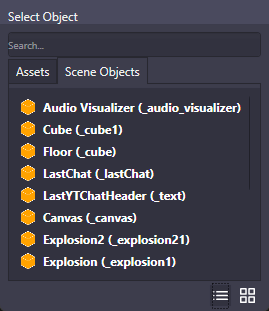
The Object Selector is a picker window that appears when you need to choose an asset, scene object, or camera for a node. It provides a searchable, organized view of everything available in your project.
When It Appears
Section titled “When It Appears”The Object Selector opens when you click certain port buttons in the node graph - specifically ports that require you to select an object reference, like:
- Asset inputs (models, images, audio)
- Scene object references
- Camera selections
The selector shows different tabs based on what the node accepts:
| Tab | Contents |
|---|---|
| Assets | Bundled assets from your project (models, materials, etc.) |
| Scene Objects | Objects currently in your scene |
| Cameras | Scene objects with camera components |
| Assets (Runtime) | Assets loaded during runtime |
| Scenes | Available scenes in your project |
Only relevant tabs appear - if a node only accepts scene objects, you won’t see the Assets tab.
Searching
Section titled “Searching”Type in the search box to filter the list. Search matches items whose names start with your search text (case-insensitive).
Clear the search box to see all items again.
View Modes
Section titled “View Modes”Toggle between two display modes using the buttons at the bottom:
| Mode | Description |
|---|---|
| List | Compact rows with small icons and names |
| Thumbnail | Larger icons in a grid layout |
Use List view for quick selection when you know the name. Use Thumbnail view when you want to visually browse assets.
Selecting an Item
Section titled “Selecting an Item”Click any item in the list to select it. The selector closes automatically and the selected item is assigned to the port.
🎯 Quick Search: Start typing immediately after the selector opens to filter the list.
🎯 Visual Browse: Switch to Thumbnail view when working with images or models to see previews.
🎯 Camera Tab: Use the dedicated Cameras tab to quickly find cameras without scrolling through all scene objects.
Related
Section titled “Related”- Variables Nodes - Using object references in node graphs
- Scene Objects - Understanding objects in your scene
- Assets - Working with project assets