Stage Panel
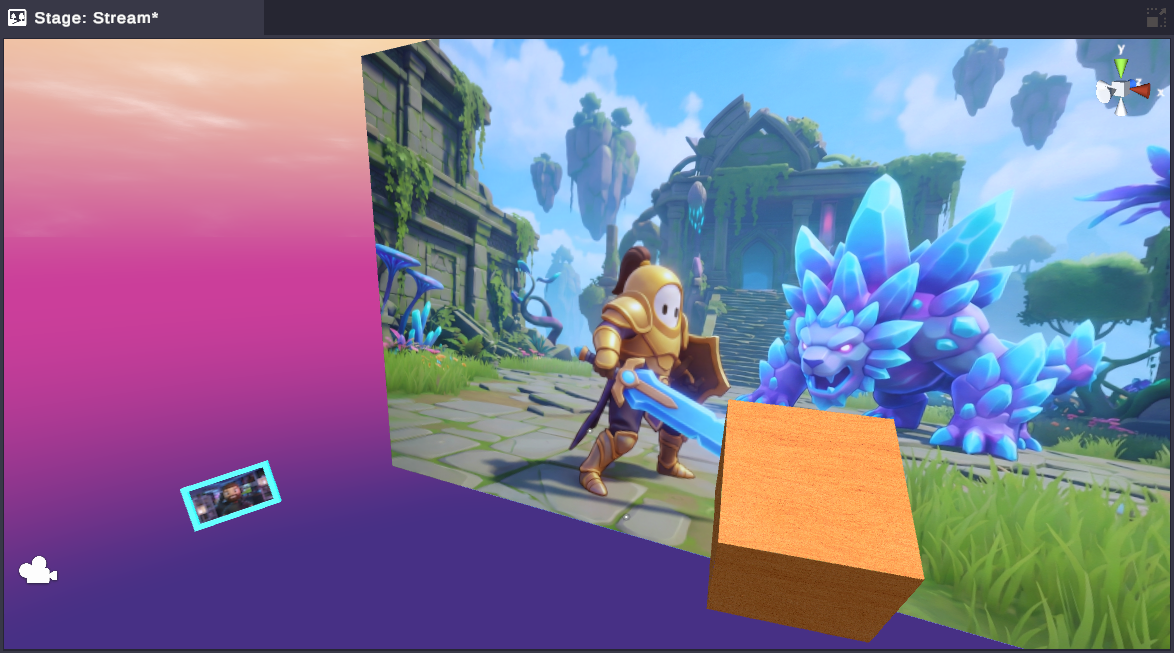
The Stage is your main workspace where you view and interact with scene objects in 3D space. This is where you’ll position cameras, arrange alerts, and preview how your stream overlays will look.
Camera Navigation
Section titled “Camera Navigation”Navigate around your scene to view objects from any angle. Master these controls to quickly position yourself for precise object placement.
Orbiting (Rotating the View)
Section titled “Orbiting (Rotating the View)”Rotate the camera around a central point to view your scene from different angles.
| Action | How |
|---|---|
| Orbit around center | Hold Alt + Left Mouse Button and drag |
| Zoom while orbiting | Scroll mouse wheel while orbiting |
This is useful when positioning 3D models or checking how objects look from your stream camera’s perspective.
Panning (Moving the View)
Section titled “Panning (Moving the View)”Slide the camera left, right, up, or down without changing the viewing angle.
| Action | How |
|---|---|
| Pan the view | Hold Middle Mouse Button and drag |
Use panning to center specific objects in your view or to explore different areas of your scene.
Zooming
Section titled “Zooming”Move closer to or farther from objects in your scene.
| Action | How |
|---|---|
| Zoom in/out | Scroll the mouse wheel |
Free Movement (Fly Mode)
Section titled “Free Movement (Fly Mode)”Move freely through your scene like a first-person game. This is great for quickly navigating large scenes or getting into tight spaces.
| Action | How |
|---|---|
| Enter free movement | Hold Right Mouse Button |
| Move forward/back | W / S keys while in free movement |
| Move left/right | A / D keys while in free movement |
| Move up/down | E / Q keys while in free movement |
| Look around | Move mouse while holding Right Mouse Button |
Selecting Objects
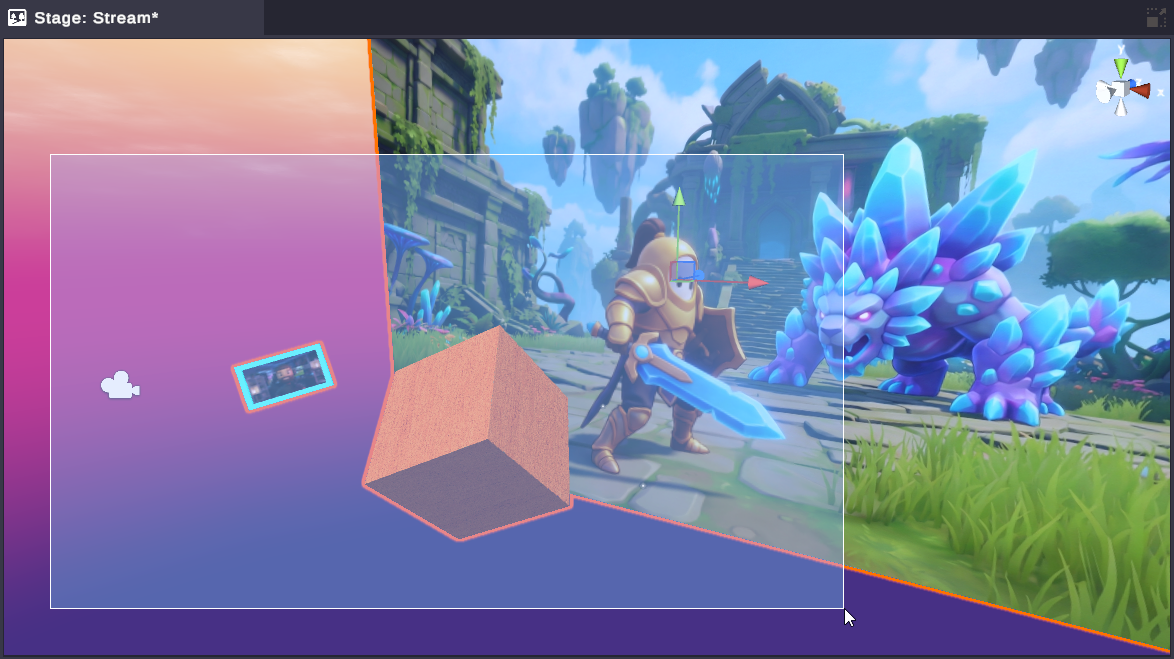
Section titled “Selecting Objects”Click on scene objects directly in the Stage to select them. Selected objects display a highlight outline and show their properties in the Inspector panel.
Selection Methods
Section titled “Selection Methods”| Action | How |
|---|---|
| Select object | Left-click on it |
| Add to selection | Ctrl + Left-click |
| Select multiple (box select) | Click and drag to draw a selection rectangle |
Transform Tools
Section titled “Transform Tools”Transform tools let you move, rotate, and scale selected objects. Switch between tools using the toolbar at the top of the screen or keyboard shortcuts.
Tool Shortcuts
Section titled “Tool Shortcuts”| Tool | Shortcut | Description |
|---|---|---|
| Hand (View) | Q | Navigate without affecting objects |
| Move | W | Position objects in 3D space |
| Rotate | E | Spin objects around their pivot |
| Scale | R | Make objects larger or smaller |
| Rect | T | Transform objects using a 2D rectangle |
Using Transform Gizmos
Section titled “Using Transform Gizmos”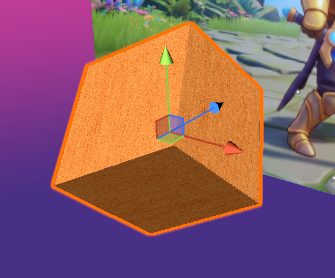
When you select an object with a transform tool active, colored handles appear:
- Red arrow/ring/box: X-axis (left/right)
- Green arrow/ring/box: Y-axis (up/down)
- Blue arrow/ring/box: Z-axis (forward/back)
- Center cube/sphere: All axes at once
Click and drag these handles to transform your object along specific axes.
Pivot Mode and Rotation
Section titled “Pivot Mode and Rotation”The toolbar includes toggles for how transforms are calculated:
| Toggle | Options | Use Case |
|---|---|---|
| Pivot Mode | Center / Pivot | Center uses the bounding box center; Pivot uses the object’s origin point |
| Rotation Mode | Global / Local | Global uses world axes; Local uses the object’s own orientation |
Grid and Snapping
Section titled “Grid and Snapping”The grid helps you align objects precisely. Snapping makes objects “jump” to grid positions.
Grid Display
Section titled “Grid Display”A reference grid appears on the ground plane to help with spatial orientation. The grid automatically fades when you’re too close to it.
Snap to Grid
Section titled “Snap to Grid”Instantly align selected objects to the grid:
| Action | How |
|---|---|
| Snap to grid | Shift + G |
This moves selected objects to the nearest grid intersection, which is useful for aligning multiple objects or creating even spacing.
Unit Snapping (While Dragging)
Section titled “Unit Snapping (While Dragging)”Hold a modifier key while dragging to snap movement to grid units:
| Action | How |
|---|---|
| Snap while moving | Hold Ctrl while dragging with Move tool |
This lets you move objects in precise increments rather than free movement.
Focus and Framing
Section titled “Focus and Framing”Quickly navigate to specific objects using focus commands.
| Action | Shortcut | Description |
|---|---|---|
| Focus on selection | F | Zoom to frame the selected object |
| Focus on all active | Shift + F | Zoom to show all active objects |
Orientation Gizmo
Section titled “Orientation Gizmo”
The orientation gizmo appears in the corner of the Stage showing the current camera orientation with X, Y, and Z axis indicators.
Quick View Angles
Section titled “Quick View Angles”Click on the axis labels to snap to standard views:
| Click | Result |
|---|---|
| X (red) | View from the right side |
| Y (green) | View from above (top-down) |
| Z (blue) | View from the front |
| Opposite side | Click the back of any axis to view from the opposite direction |
| Center cube | Toggle between perspective and orthographic view |
Perspective vs. Orthographic
Section titled “Perspective vs. Orthographic”- Perspective view: Objects appear smaller when farther away (realistic)
- Orthographic view: Objects maintain their size regardless of distance (technical)
Click the center of the orientation gizmo or use the “Persp/Ortho” button to toggle between modes.
Keyboard Shortcuts Reference
Section titled “Keyboard Shortcuts Reference”Quick reference for all Stage-related shortcuts:
| Action | Shortcut |
|---|---|
| Hand Tool | Q |
| Move Tool | W |
| Rotate Tool | E |
| Scale Tool | R |
| Rect Tool | T |
| Focus Selected | F |
| Focus All Active | Shift + F |
| Snap to Grid | Shift + G |
| Orbit View | Alt + Left Mouse |
| Pan View | Middle Mouse |
| Zoom | Scroll Wheel |
| Free Move | Right Mouse + WASD |
| Select All | Ctrl + A |
| Delete | Delete |
| Duplicate | Ctrl + D |
| Undo | Ctrl + Z |
| Redo | Ctrl + Shift + Z |
Tips for Streamers
Section titled “Tips for Streamers”Related
Section titled “Related”- Hierarchy Panel - Select and organize scene objects
- Inspector Panel - Edit object properties
- Scene Objects - Understanding scene objects