Settings
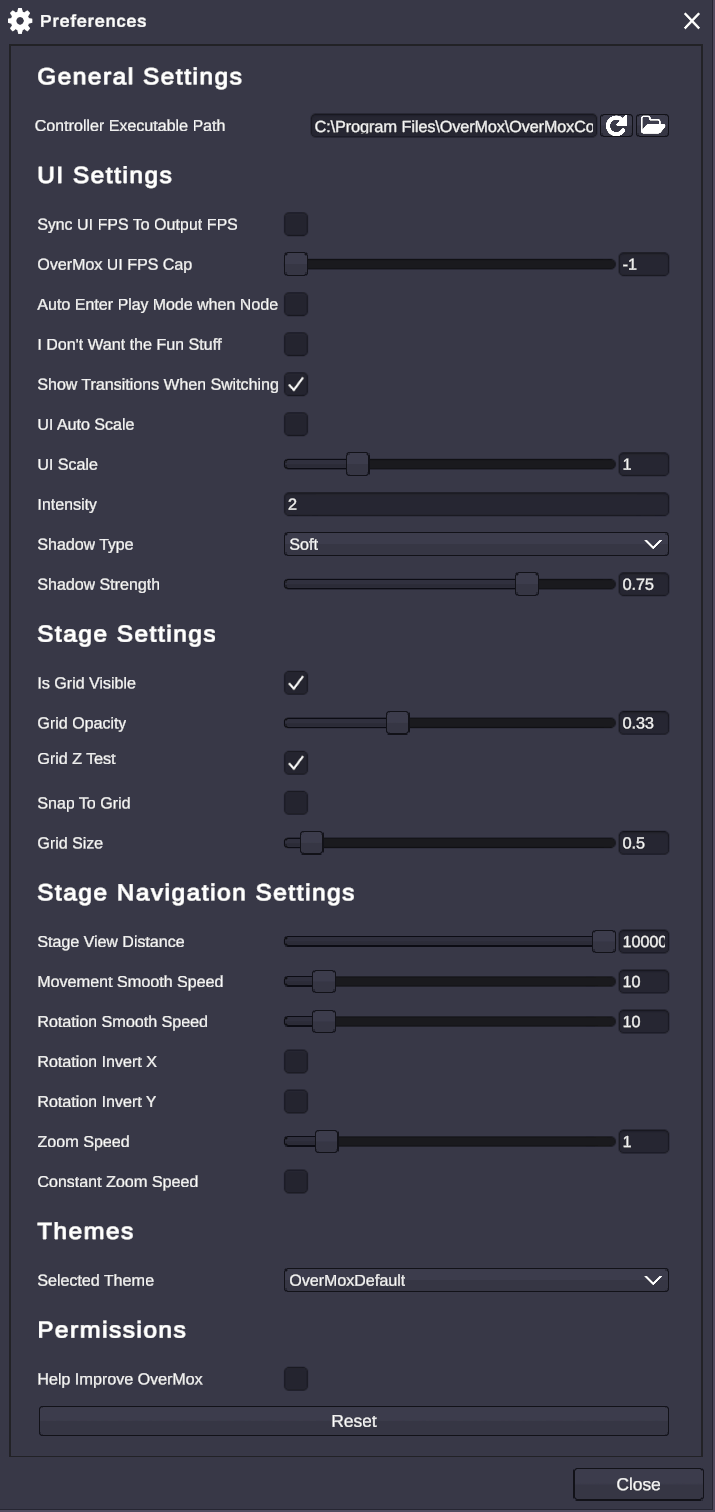
Access Settings through Edit → Settings to customize how OverMox looks and behaves. Changes are saved automatically.
UI Settings
Section titled “UI Settings”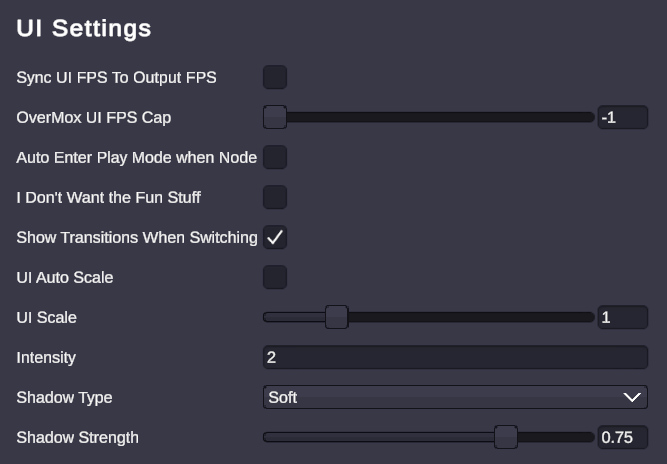
Control the user interface appearance and behavior.
| Setting | Description |
|---|---|
| Sync UI FPS to Output FPS | Match the editor’s frame rate to your output settings |
| OverMox UI FPS Cap | Maximum frame rate for the editor UI (-1 for unlimited) |
| Auto Enter Play Mode | Automatically start playback when a node graph begins |
| Show Transitions When Switching Scenes | Play transition effects when changing scenes in the editor |
| UI Auto Scale | Automatically scale the UI based on display resolution |
| UI Scale | Manual scaling factor (0.5 to 3.0) when auto scale is disabled |
| Theme | Select a visual theme for the editor |
Stage Settings
Section titled “Stage Settings”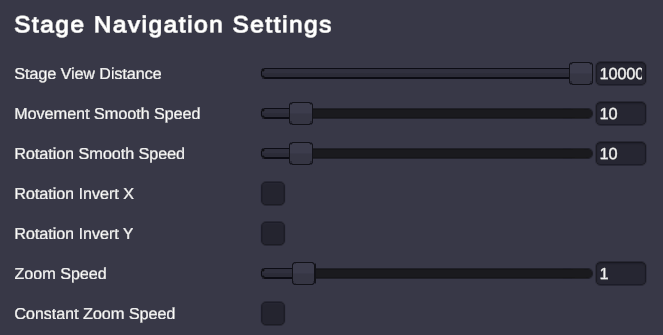
Configure the 3D viewport grid and workspace.
| Setting | Description |
|---|---|
| Controller Executable Path | Path to the OverMox Controller application |
| Is Grid Visible | Show or hide the reference grid |
| Grid Opacity | Transparency of the grid lines |
| Grid Z Test | Whether the grid renders behind objects |
| Snap To Grid | Snap object movement to grid increments |
| Grid Size | Size of grid squares (0.1 to 8.0 units) |
Stage Navigation Settings
Section titled “Stage Navigation Settings”Customize how you move around the 3D viewport.
| Setting | Description |
|---|---|
| Movement Smooth Speed | How smoothly the camera moves (1 to 100) |
| Rotation Smooth Speed | How smoothly the camera rotates (1 to 100) |
| Rotation Invert X | Invert horizontal camera rotation |
| Rotation Invert Y | Invert vertical camera rotation |
| Stage View Distance | Maximum render distance (1 to 10,000 units) |
| Zoom Speed | How fast scroll zoom works (0.01 to 10) |
| Constant Zoom Speed | Use fixed zoom increments instead of proportional |
Default Light Settings
Section titled “Default Light Settings”Configure the default lighting for new scenes.
| Setting | Description |
|---|---|
| Light Color | Color of the default scene light |
| Light Intensity | Brightness of the default light |
| Shadow Type | Type of shadows (None, Hard, Soft) |
| Shadow Strength | Darkness of shadows (0 to 1) |
Additional Options
Section titled “Additional Options”| Setting | Description |
|---|---|
| Help Improve OverMox | Opt in to anonymous usage reporting |
| Reset to Defaults | Restore all settings to their original values |
🎯 Performance: If the editor feels sluggish, try lowering the UI FPS Cap or disabling UI Auto Scale.
🎯 Grid Workflow: Enable Snap To Grid when precisely positioning objects, disable it for freeform placement.
🎯 Navigation: Increase Movement Smooth Speed for snappier camera control, or decrease it for cinematic-style movement.
Related
Section titled “Related”- Project Settings - Project-specific configuration
- Stage - Working in the 3D viewport
- Menus - Full menu reference