Camera
These 3 nodes control cameras and coordinate spaces. Use them to cut or transition between cameras and to convert positions between the 2D viewport and the 3D world.
SwitchCamera
Section titled “SwitchCamera”💡 Simple Explanation: Switches active camera with smooth transitions. Multi-camera cinematics.
⚙️ Technical Description: Async node that switches the active camera using TransitionsManager for smooth transitions between GameViewCamera instances.
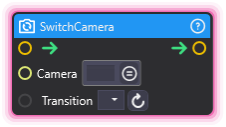
🔍 Full Details & Examples
🔧 How It Works: Changes main camera using TransitionsManager for smooth switching.
✨ Perfect For:
- Multi-camera setups
- Cinematic moments
- Perspective changes
👉 Inputs:
Camera(ObjectSelector) - Target camera to switch toTransition(Dropdown) - Type of transition (Cut, Fade, etc.)
🎬 Streaming Example: “Switch to close-up camera when milestone reached.”
🎯 Tips: Requires GameViewCamera component. Supports various transition effects.
ViewportToWorldPosition
Section titled “ViewportToWorldPosition”💡 Simple Explanation: Converts screen coordinates to 3D world space. Maps UI to scene positions.
⚙️ Technical Description: Synchronous node that converts viewport coordinates (0-1 range) to world space positions using Camera.ViewportToWorldPoint.
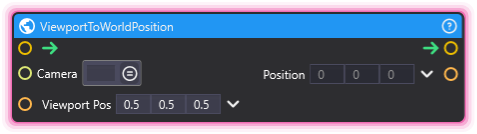
🔍 Full Details & Examples
🔧 How It Works: Takes viewport coords (0-1 range) and converts to world position.
✨ Perfect For:
- Spawning objects at screen positions
- Cursor to world mapping
- UI interaction with 3D world
👉 Inputs:
Camera(Camera) - Camera to use for conversionViewport Pos(Vector3) - Screen position (0-1 range, Z is depth)
👈 Outputs:
- (Vector3) - Resulting 3D world position
🎬 Streaming Example: “Spawn particle at specific screen location.”
🎯 Tips: Viewport 0,0 = bottom-left, 1,1 = top-right. Z depth matters for position.
WorldToViewportPosition
Section titled “WorldToViewportPosition”💡 Simple Explanation: Converts 3D world positions to screen coordinates. Maps scene to UI.
⚙️ Technical Description: Synchronous node that converts world space positions to viewport coordinates (0-1 range) using Camera.WorldToViewportPoint.
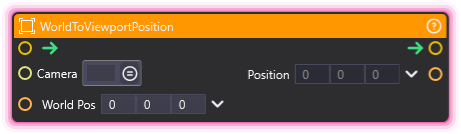
🔍 Full Details & Examples
🔧 How It Works: Takes world position and outputs viewport coords (0-1 range).
✨ Perfect For:
- Positioning UI elements over 3D objects
- Screen effects tracking 3D objects
- Off-screen indicators
👉 Inputs:
Camera(Camera) - Camera to use for conversionWorld Pos(Vector3) - 3D world position to convert
👈 Outputs:
- (Vector3) - Resulting screen position (0-1 range)
🎬 Streaming Example: “Position nametag UI above character’s head in 3D space.”
🎯 Tips: Output 0,0 = bottom-left, 1,1 = top-right. Check Z for off-screen detection.
OnMainCameraChanged
Section titled “OnMainCameraChanged”💡 Simple Explanation: Listens for when the active scene’s main camera changes and fires your graph. Like a cue that tells you a new shot just went live.
⚙️ Technical Description: UpdaterNode that subscribes to OutputManager.MainCameraChanged and resolves the new GameViewCamera to a Scene Object reference for its output.
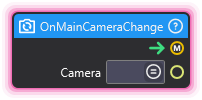
🔍 Full Details & Examples
🔧 How It Works: When the active scene’s main camera changes, this node fires its output trigger and outputs the new camera as a Scene Object reference. It still fires when the camera can’t be resolved, sending an empty reference so your graph never misses the change.
✨ Perfect For:
- Reacting when you switch shots
- Updating overlays for the live camera
- Tracking the current camera in your graph
- Triggering effects on camera changes
👈 Outputs:
Camera(ObjectSelector) - The scene’s new main camera
🎬 Streaming Example: “When you cut from your face cam to your wide stage camera, swap the overlay layout to match the new shot.”
🎯 Tips: Pair with SwitchCamera to react right after a shot change. Fires with an empty reference if the new camera can’t be resolved.