Animation Components
Animation components allow you to play pre-made animation clips on scene objects, bringing them to life with movement.
Animator
Section titled “Animator”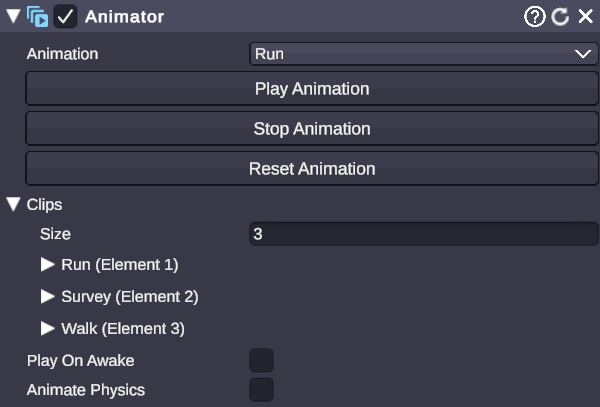
🏷️ Category: Animation
💡 Simple Explanation: Plays animation clips on objects - walk cycles, dances, gestures, and more.
⚙️ Technical Description: Manages legacy animation clips attached to a scene object, providing playback control with play, stop, reset, speed adjustment, and crossfade transitions between clips.
📖 Full Details & Properties
🔧 How It Works: The Animator component holds a list of animation clips imported with 3D models. You can select an animation from the dropdown and use the control buttons to play, stop, or reset it. Each clip can have its own playback speed, and animations can crossfade smoothly from one to another.
✨ Perfect For:
- Character animations (idle, walk, wave, dance)
- Mechanical animations (doors opening, gears turning)
- Looping ambient animations
- Triggered celebration animations
📋 Properties:
| Property | Type | Description |
|---|---|---|
| Animation | Dropdown | Select which animation clip to control |
| Play Animation | Button | Start playing the selected animation |
| Stop Animation | Button | Stop all animations |
| Reset Animation | Button | Reset the selected animation to frame 0 |
| Clips | List | All available animation clips with per-clip settings |
| Play On Awake | Boolean | Automatically play the animation when the scene starts |
| Animate Physics | Boolean | Sync animation with physics (for kinematic Rigidbodies) |
Per-Clip Settings (in Clips list):
| Property | Type | Description |
|---|---|---|
| Speed | Float | Playback speed (1 = normal, 2 = double speed, -1 = reverse) |
🎬 Streaming Example: “Play a victory dance animation on your mascot whenever someone subscribes.”
🎯 Tips:
- Animations come from imported 3D models - you can’t create them directly in OverMox.
- Use negative Speed values to play animations in reverse.
- Enable Play On Awake for ambient animations that should always be running.
- Enable Animate Physics when animated objects need to push physics objects correctly (the animated object should have a kinematic Rigidbody).
- Use the
PlayAnimationnode in node graphs to trigger animations from events.
Related Node Graph Nodes
Section titled “Related Node Graph Nodes”Control animations programmatically with these nodes:
PlayAnimation- Start an animation with optional crossfadeStopAnimation- Stop all animations on an objectResetAnimation- Reset an animation to the beginningAnimationTransition- Smoothly transition between animations