Triggers
Trigger nodes are the entry points of a node graph. They start execution - from a manual button press, the graph starting or stopping, or a remote signal sent from another part of your setup.
ButtonTrigger
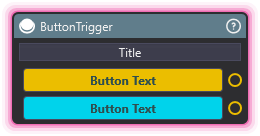
Section titled “ButtonTrigger”💡 Simple Explanation: A manual trigger you can activate from the UI. Think of it as a “go button” you press to start a sequence of actions.
⚙️ Technical Description: Generic button/UI trigger input that executes immediately when triggered.
🔍 Full Details & Examples
🔧 How It Works: When you click this trigger in the interface, it immediately fires and executes whatever nodes are connected to it. Simple and direct activation.
✨ Perfect For:
- Testing node graphs manually
- Creating UI buttons for manual control
- Debug triggers during development
- Manual override controls in your stream setup
🎬 Streaming Example: “Add a button to your control panel that manually triggers your ‘thank you for watching’ end-of-stream sequence.”
🎯 Tips: For automated triggers based on events (like donations or chat), check out the Web category nodes like StreamElementsEventReceiver or StreamLabsEventReceiver.
OnStop
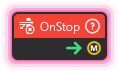
Section titled “OnStop”💡 Simple Explanation: Runs automatically when your graph stops. Perfect for cleaning up, saving data, or resetting things before shutdown.
⚙️ Technical Description: Entry point for cleanup actions executed when the node graph terminates.
🔍 Full Details & Examples
🔧 How It Works: This node triggers once when the entire node graph is stopped or shut down. It’s your opportunity to run cleanup code before everything ends.
✨ Perfect For:
- Saving current state before shutdown
- Resetting objects to default positions
- Turning off effects or overlays
- Logging session end times
🎬 Streaming Example: “When you end your stream, automatically reset all scene objects to their starting positions and save viewer interaction stats to a file.”
🎯 Tips: Pair this with WriteToFile to save session data, or use it to ensure particle effects are stopped before the graph ends.
RemoteReceiver
Section titled “RemoteReceiver”💡 Simple Explanation: Listens for messages from other parts of your graph. Like a walkie-talkie that waits for someone to call its specific channel number.
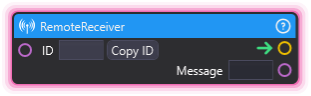
⚙️ Technical Description: Receives remote trigger signals from matching RemoteTrigger nodes by unique identifier.
🔍 Full Details & Examples
🔧 How It Works: You give this receiver a unique ID. Whenever a RemoteTrigger with the same ID fires anywhere in your graph (or even in other graphs), this receiver activates and passes along any message data.
✨ Perfect For:
- Creating reusable event systems
- Triggering the same effect from multiple sources
- Building modular graph sections that respond to events
- Cross-graph communication
👉 Inputs:
ID(String) - Unique identifier to match with RemoteTriggers
👈 Outputs:
Message(String) - Any message data sent by the trigger
🎬 Streaming Example: “Set up a ‘celebration’ receiver that triggers confetti. Multiple donation amount triggers can all send to this one receiver, so you don’t duplicate the confetti effect logic.”
🎯 Tips: Use descriptive IDs like “donation_alert” or “scene_transition” to keep your graph organized. Multiple receivers can share the same ID if you want one trigger to activate many effects.
RemoteTrigger
Section titled “RemoteTrigger”💡 Simple Explanation: Sends a message to all receivers listening on a specific channel. Like broadcasting on a walkie-talkie to anyone tuned to that frequency.
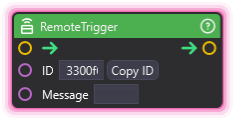
⚙️ Technical Description: Sends trigger signals to all RemoteReceiver nodes with matching unique identifier.
🔍 Full Details & Examples
🔧 How It Works: When this node executes, it finds every RemoteReceiver with the same ID and triggers them all simultaneously. You can optionally include a message string to pass data along.
✨ Perfect For:
- Triggering multiple effects from one source
- Creating event broadcast systems
- Modular graph architecture
- Activating remote graph sections without direct connections
👉 Inputs:
ID(String) - Unique identifier matching target receiversMessage(String) - Optional data to send to receivers
🎬 Streaming Example: “When a viewer uses a specific chat command, trigger all receivers listening for ‘special_effect’ to activate different visual effects across your scene simultaneously.”
🎯 Tips: The message field is great for passing dynamic data like usernames or amounts. Combine with TextFormatter to build custom messages.
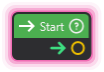
💡 Simple Explanation: The starting line of your graph. When the graph activates, this node fires first and kicks off everything connected to it.
⚙️ Technical Description: Entry point for node graph execution, automatically triggered when the graph starts.
🔍 Full Details & Examples
🔧 How It Works: This node automatically executes when the graph is loaded or activated. It’s the first domino that starts the chain reaction of your node logic.
✨ Perfect For:
- Initializing variables at startup
- Setting up your scene’s default state
- Starting continuous monitoring nodes
- Beginning automated sequences
🎬 Streaming Example: “Use Start to automatically load your default camera angle and initialize viewer counters when your stream overlay launches.”
🎯 Tips: Most graphs have exactly one Start node. If you need multiple starting points, use RemoteTrigger and RemoteReceiver to create additional entry points you can trigger manually.
StartGraph
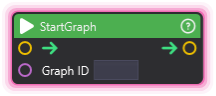
Section titled “StartGraph”💡 Simple Explanation: Turns on a different node graph. Like having multiple programs and being able to launch one from another.
⚙️ Technical Description: Initiates execution of another node graph by its unique identifier.
🔍 Full Details & Examples
🔧 How It Works: When this node executes, it finds the graph with the matching ID and starts it running. The target graph’s Start node will fire, beginning its execution chain.
✨ Perfect For:
- Modular graph organization (separate graphs for different features)
- Starting specialized sub-systems on demand
- Managing complex behaviors split across multiple graphs
- Conditional graph activation
👉 Inputs:
Graph ID(Dropdown) - Select the target graph to start
🎬 Streaming Example: “When a viewer redeems a channel point reward, start your ‘mini-challenge’ graph that runs an interactive challenge while keeping your main alert graph running.”
🎯 Tips: Use this with StopGraph to swap between different graph behaviors. Great for scene-specific logic that only needs to run sometimes.
StopGraph
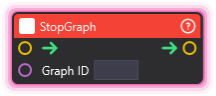
Section titled “StopGraph”💡 Simple Explanation: Turns off a running node graph. The opposite of StartGraph - it shuts down a specific graph on command.
⚙️ Technical Description: Halts execution of another node graph by its unique identifier.
🔍 Full Details & Examples
🔧 How It Works: When executed, this node finds the graph with the matching ID and stops it. The target graph’s OnStop node will trigger, allowing cleanup before shutdown.
✨ Perfect For:
- Stopping specialized sub-systems when no longer needed
- Conditional graph control
- Managing performance by stopping unused graphs
- Cleanup and resource management
👉 Inputs:
Graph ID(Dropdown) - Select the target graph to stop
🎬 Streaming Example: “When you switch scenes, automatically stop the graph controlling your previous scene’s interactive elements to free up resources.”
🎯 Tips: The stopped graph’s OnStop node will execute, so you can chain cleanup logic there. Use with Conditional to create smart on/off switching logic.
EventHandler
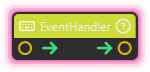
Section titled “EventHandler”💡 Simple Explanation: A passthrough node that relays triggers. Think of it as a junction box that helps organize your graph’s flow without changing anything.
⚙️ Technical Description: Simple passthrough node that acts as an event relay point. Can be used to organize graph flow.
🔍 Full Details & Examples
🔧 How It Works: When triggered, this node immediately fires its output trigger. It doesn’t modify or process anything - it simply passes the execution signal through. Useful for creating logical groupings or organizing complex graphs.
✨ Perfect For:
- Organizing complex graph layouts
- Creating named junction points for clarity
- Building reusable graph sections
- Simplifying visual flow in large graphs
👉 Inputs:
Trigger(Execution) - The incoming execution trigger
👈 Outputs:
Trigger(Execution) - The outgoing execution trigger
🎬 Streaming Example: “Use EventHandler nodes as labeled junction points in your graph - one named ‘After Donation Processing’ that multiple branches flow into before continuing to the next stage.”
🎯 Tips: While this node doesn’t add functionality, it greatly improves readability in complex graphs. Name your EventHandler nodes descriptively to document what stage of processing the graph is at.