Asset Catalog
The Asset Catalog provides instant access to a library of professional-quality materials, skyboxes, and visual effects. Browse thousands of assets and import them directly into your project with a single click.
The catalog is powered by Ambient CG, providing high-quality, royalty-free PBR materials and HDRIs.
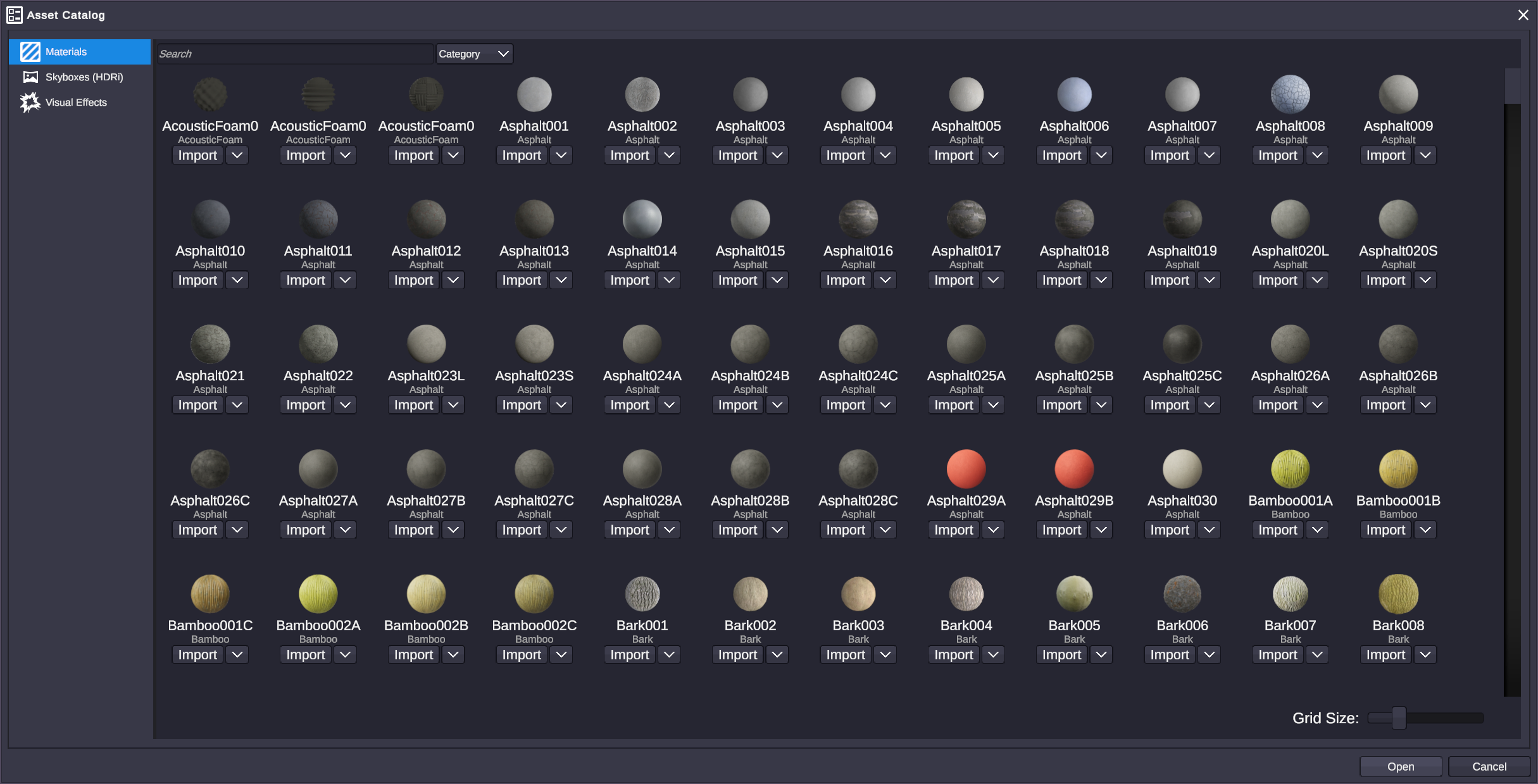
Opening the Asset Catalog
Section titled “Opening the Asset Catalog”Access the Asset Catalog from the Window menu or the toolbar. The catalog opens as a panel you can dock anywhere in your workspace.
Browsing Assets
Section titled “Browsing Assets”Categories
Section titled “Categories”The catalog organizes assets into categories:
| Category | Description |
|---|---|
| Materials | PBR materials for surfaces (wood, metal, fabric, etc.) |
| Skyboxes | 360° environment backgrounds (HDRIs) |
| Visual Effects | Particle effects and VFX prefabs |
| Mesh Effects | Shader-driven VFX that wrap an object’s mesh surface - fire, ice, electricity, and more |
Searching
Section titled “Searching”Use the search bar to find specific assets:
- Search by name: “brick”, “wood”, “metal”
- Search by style: “rustic”, “modern”, “sci-fi”
- Search by color: “blue”, “dark”, “bright”
Filtering
Section titled “Filtering”Filter results to narrow your search:
- Category - Show only materials, skyboxes, or VFX
- Resolution - Filter by texture quality
- Tags - Filter by specific properties
Previewing
Section titled “Previewing”Click an asset to see a larger preview with details:
- Full preview image
- Asset description
- Available resolutions/variants
- File size information
Materials
Section titled “Materials”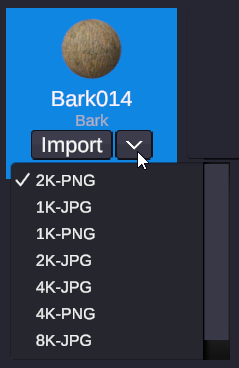
What Materials Include
Section titled “What Materials Include”Each material in the catalog is a complete PBR (Physically Based Rendering) material with:
| Texture Map | Purpose |
|---|---|
| Diffuse/Albedo | Base color |
| Normal | Surface detail and bumps |
| Roughness | How shiny vs matte the surface is |
| Displacement | Actual geometry displacement (optional) |
| Ambient Occlusion | Soft shadow detail in crevices |
Material Categories
Section titled “Material Categories”Browse materials by type:
- Wood - Planks, panels, bark, parquet
- Metal - Steel, copper, rust, brushed
- Stone - Brick, marble, concrete, tiles
- Fabric - Leather, cloth, carpet, weave
- Ground - Grass, sand, dirt, gravel
- And more…
Using Materials
Section titled “Using Materials”- Find a material you like in the catalog
- Click to select it
- Click Import/Download
- The material appears in your Project panel
- Drag it onto any scene object
Materials are imported as assets and can be applied to any scene object with an Object Renderer component.
Skyboxes
Section titled “Skyboxes”What Skyboxes Are
Section titled “What Skyboxes Are”Skyboxes are 360° panoramic images used as environment backgrounds. They provide:
- Realistic sky and surroundings
- Environment reflections on shiny objects
- Ambient lighting from the environment
HDRI Format
Section titled “HDRI Format”Skyboxes in the catalog are HDRIs (High Dynamic Range Images), which contain lighting information beyond standard image formats. This means:
- Realistic lighting on your scene objects
- Accurate reflections
- No washed-out bright areas
Using Skyboxes
Section titled “Using Skyboxes”- Browse the Skyboxes category
- Select and import a skybox
- Apply it to your scene’s environment settings
- Objects automatically receive environment reflections
Visual Effects
Section titled “Visual Effects”Available Effects
Section titled “Available Effects”The catalog includes ready-to-use visual effects:
- Particles - Fire, smoke, sparkles, magic
- Explosions - Various explosion types
- Weather - Rain, snow, fog, dust
- Abstract - Energy, portals, geometric patterns
Using VFX
Section titled “Using VFX”- Find an effect in the catalog
- Import it to your project
- Drag it into your scene
- Position and configure as needed
VFX assets come pre-configured with particle settings, materials, and animations. Adjust properties in the Inspector to customize them.
Mesh Effects
Section titled “Mesh Effects”Mesh Effects wrap themselves around an object’s mesh surface - fire crawling across a prop, frost forming on a logo, electricity arcing over a model. Unlike the other catalog categories, you don’t drag Mesh Effects into a scene. Instead:
- Select the object you want to affect in the Hierarchy.
- Right-click → Add → Mesh Effect - this opens the catalog pre-filtered to the Mesh Effect tab.
- Click Import on the effect you want and it’s applied as a child scene object.
21 mesh effects ship built-in, covering fire, ice, electric, dissolve, metallic, and holographic themes. See the Mesh Effects guide for the full workflow, limitations, and how to manage an applied effect.
Importing Assets
Section titled “Importing Assets”Download and Import
Section titled “Download and Import”When you select an asset and click Import:
- The asset downloads from the catalog servers
- Files are added to your project
- The asset appears in your Project panel
- It’s ready to use immediately
Resolution Options
Section titled “Resolution Options”Many assets offer multiple resolutions:
| Resolution | Use Case |
|---|---|
| 1K | Distant objects, performance priority |
| 2K | General use, good balance |
| 4K | Close-up objects, quality priority |
| 8K | Extreme close-ups, highest quality |
Choose lower resolutions for better performance, higher for better visual quality.
Offline Access
Section titled “Offline Access”Once imported, assets are stored in your project and don’t require internet access. You can use them offline after the initial download.
🎯 Start Small: Import 1K or 2K versions first. Upgrade to higher resolution only if you need close-up detail.
🎯 Build a Library: Import materials you might use later. Having options available speeds up creative work.
🎯 Mix and Match: Combine catalog materials with your own images and adjustments for unique looks.
🎯 Check the Preview: Always preview materials on a 3D object similar to how you’ll use them - flat preview can look different than on curved surfaces.
🎯 Consider Performance: High-resolution textures use more GPU memory. Balance quality with your target performance.
Related
Section titled “Related”- Assets - Working with project assets
- Filters - Apply effects to imported assets
- Components - Rendering - Object Renderer for applying materials