Flow
These 10 nodes decide when and how the rest of your graph runs. Use them for if/else branching, loops, delays, timers, cooldowns, and routing execution down different paths.
Conditional
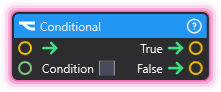
Section titled “Conditional”💡 Simple Explanation: Your graph’s decision maker. Checks if something is true or false, then picks which path to follow next.
⚙️ Technical Description: Branches execution based on a boolean condition, executing different outputs for true or false results.
🔍 Full Details & Examples
🔧 How It Works: When this node executes, it checks the condition input. If it’s true, the true_output fires. If it’s false, the false_output fires. Classic if/else logic.
✨ Perfect For:
- Checking donation amounts (“if donation > $10, trigger special effect”)
- Comparing viewer counts or subscriber status
- Creating different behaviors based on time of day
- Building decision trees in your graphs
👉 Inputs:
condition(Boolean) - The true/false value to check
👈 Outputs:
true_output- Fires when condition is truefalse_output- Fires when condition is false
🎬 Streaming Example: “When a viewer donates, check if the amount is over $20. If true, trigger the premium celebration effect. If false, trigger the standard thank you message.”
🎯 Tips: Use with Comparison node to build conditions like “is X greater than Y?” or “does username equal ‘SpecialViewer’?”
Cooldown
Section titled “Cooldown”💡 Simple Explanation: A timer that lets a trigger through, then turns triggers away until its cooldown has run out. Prevents things from happening too frequently, like spam protection.
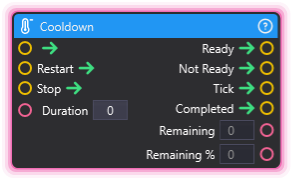
⚙️ Technical Description: Manages cooldown periods with multiple state outputs, including ready/not-ready checks, completion events, and tick updates with remaining time tracking.
🔍 Full Details & Examples
🔧 How It Works: When triggered with no cooldown running (the first trigger of each graph run, after Stop, or once the last cooldown has finished), it starts a new cooldown, then fires the ready_output. A trigger during the cooldown fires the not_ready_output and leaves the cooldown running as it was. While active, Remaining counts down the seconds left and Remaining % counts down from 100 to 0, both reaching 0 when Completed fires. Each cooldown runs for the Duration it read when it started (a trigger that fires Ready, or Restart), so a change to Duration applies from the next cooldown and never ends or stretches the one running. A Duration of 0 or less starts no cooldown: every trigger fires Ready, Remaining and Remaining % read 0, Tick and Completed never fire, and the node logs one warning.
✨ Perfect For:
- Preventing alert spam (max one alert per 5 seconds)
- Ability cooldowns for interactive elements
- Rate limiting chat command responses
- Time-gated rewards or effects
👉 Inputs:
Duration(Float) - Cooldown period in seconds, read when a cooldown startsRestart(Trigger) - Start the cooldown over from the fullDuration, running or not; fires no outputStop(Trigger) - Stop the cooldown timer withoutCompleted; the next trigger firesReady
👈 Outputs:
Ready- Fires if no cooldown is running, after starting a new one (none whenDurationis 0 or less)Not Ready- Fires if still cooling downCompleted- Fires when cooldown finishesTick- Fires every frame while activeRemaining(Float) - Seconds leftRemaining %(Float) - Percent of the cooldown left, from 100 at the start down to 0
🎬 Streaming Example: “When viewers trigger a special effect via chat command, set a 10-second cooldown so the effect doesn’t spam. For a progress bar that fills as the cooldown ends, feed it 100 minus the Remaining % output.”
🎯 Tips: Unlike Delay which always waits, Cooldown checks if enough time has passed and can reject rapid triggers. Perfect for preventing spam.
💡 Simple Explanation: Makes your graph wait before doing the next thing. Like a countdown timer that automatically continues when time’s up.
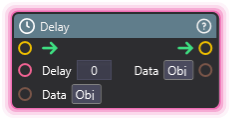
⚙️ Technical Description: Pauses execution for a specified duration before triggering the next connected node. Multiple concurrent delays are managed independently.
🔍 Full Details & Examples
🔧 How It Works: When this node is triggered, it waits for the specified number of seconds, then fires the next connected node. If multiple delays are running at once, they don’t interfere with each other.
✨ Perfect For:
- Creating timed sequences (show alert, wait 3 seconds, fade out)
- Adding dramatic pauses between actions
- Spacing out multiple effects so they don’t overlap
- Building “wait then…” workflows
👉 Inputs:
Delay(Float) - How many seconds to wait
🎬 Streaming Example: “When a viewer subscribes, show their name on screen, wait 4 seconds, then trigger a firework particle effect.”
🎯 Tips: If you need to track progress during the delay or cancel it, check out Cooldown instead. For frame-precise timing, use OnNewFrame.
ForLoop
Section titled “ForLoop”💡 Simple Explanation: Repeats an action a specific number of times, counting from start to finish. Like saying “do this 10 times” or “count from 1 to 100.”
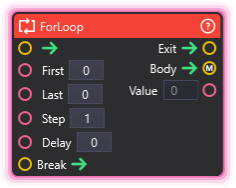
⚙️ Technical Description: Traditional for-loop iteration with configurable start, end, and increment values. Supports optional delay between iterations and break interruption. Respects YieldMode for automatic frame yielding.
🔍 Full Details & Examples
🔧 How It Works: Starts at the First value, increments by Step each iteration, and continues until reaching the Last value. The Body output fires each time, and Value shows the current count. When done, Exit fires.
✨ Perfect For:
- Spawning multiple objects (create 10 confetti particles)
- Iterating through numbered items
- Creating countdowns or count-ups
- Repeating effects with precise control
👉 Inputs:
First(Float) - Starting value (e.g., 0)Last(Float) - Ending value (e.g., 10)Step(Float) - Increment per loop (e.g., 1)Delay(Float) - Wait time between iterationsBreak(Trigger) - Stop the loop early
👈 Outputs:
Exit- Fires when loop completesBody- Fires each iterationValue(Float) - Current count value
🎬 Streaming Example: “When a big donation comes in, use a for-loop to spawn 20 gold coins one at a time with a 0.1-second delay between each, creating a cascading effect.”
🎯 Tips: Set Delay to 0 for instant loops, or add delay for animated counting effects. Use the Value output to position spawned objects or update text displays.
OnNewFrame
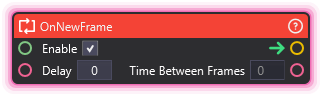
Section titled “OnNewFrame”💡 Simple Explanation: Runs continuously, firing once per frame like a heartbeat. Perfect for smooth animations and real-time updates.
⚙️ Technical Description: Continuously triggers every frame after an initial delay, outputting delta time for frame-rate independent calculations.
🔍 Full Details & Examples
🔧 How It Works: After the initial delay, this node triggers every single frame for as long as it’s enabled. The Time Between Frames output tells you how much time passed since the last frame, crucial for smooth motion.
✨ Perfect For:
- Smooth continuous animations
- Real-time audio visualizers that respond every frame
- Monitoring values that change frequently
- Frame-by-frame object movement
👉 Inputs:
Enable(Boolean) - Turn the frame updates on/offDelay(Float) - Wait this many seconds before starting
👈 Outputs:
Time Between Frames(Float) - Time since last frame (in seconds)
🎬 Streaming Example: “Create an audio visualizer that reads the current music volume every frame and scales objects based on the beat in real-time.”
🎯 Tips: Use Time Between Frames when moving objects to keep motion smooth regardless of framerate. To run logic only occasionally, use Timer or Delay instead.
Passthrough
Section titled “Passthrough”💡 Simple Explanation: A connector that does nothing except pass the signal along. Useful for organizing your graph or creating junction points.
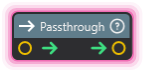
⚙️ Technical Description: Simple pass-through node that immediately triggers the next connected node without performing any operations.
🔍 Full Details & Examples
🔧 How It Works: When triggered, it immediately fires the next node. No delays, no logic, no changes to data. Just passes execution through like an electrical wire.
✨ Perfect For:
- Organizing complex graphs with clear connection points
- Creating visual separators in your node layout
- Placeholder for future logic
- Merging multiple paths into one connection point
🎬 Streaming Example: “Use passthrough nodes as labeled junction points where multiple alert types merge into a common ‘show notification’ sequence.”
🎯 Tips: While technically “empty,” passthrough nodes help keep large graphs readable. Name them descriptively to create visual landmarks in your workflow.
Switch
Section titled “Switch”💡 Simple Explanation: A flip switch that remembers if it’s on or off. Trigger it to turn on, trigger again to turn off, and it outputs its current state.
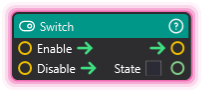
⚙️ Technical Description: Stateful toggle switch that outputs boolean true or false based on enable/disable trigger inputs.
🔍 Full Details & Examples
🔧 How It Works: When Enable fires, the output becomes true and stays true. When Disable fires, the output becomes false and stays false. It remembers its state until changed.
✨ Perfect For:
- Toggle features on/off (enable/disable particle effects)
- Creating persistent state flags
- Building toggle buttons in your UI
- Tracking enabled/disabled states
👉 Inputs:
Enable- Sets output to trueDisable- Sets output to false
👈 Outputs:
- (Boolean) - Current state (true or false)
🎬 Streaming Example: “Create a ‘dance mode’ toggle. When a specific chat command fires, enable dance mode. When another command fires, disable it. Other nodes check the switch state to see if dancing should be active.”
🎯 Tips: Combine with Conditional to create if-then logic based on the switch state. Great for features viewers can turn on and off during stream.
💡 Simple Explanation: A stopwatch that tracks how much time has passed. Start it, stop it, restart it, and check the elapsed time whenever you need.
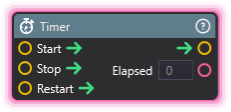
⚙️ Technical Description: Provides timer functionality with start, stop, and restart controls, continuously outputting elapsed time in seconds.
🔍 Full Details & Examples
🔧 How It Works: When Start triggers, the timer begins counting up from zero. It continuously outputs the elapsed time until you trigger Stop. Use Restart to reset to zero and immediately start again.
✨ Perfect For:
- Stream duration counters
- Challenge timers (how long until next event)
- Tracking time between events
- Creating timed challenges or goals
👉 Inputs:
Start(Trigger) - Begin countingStop(Trigger) - Pause countingRestart(Trigger) - Reset to zero and start
👈 Outputs:
Elapsed(Float) - Seconds since timer started
🎬 Streaming Example: “Start a timer when your stream begins. Display the elapsed time as a ‘Time Streamed Today’ counter. Stop it when the stream ends.”
🎯 Tips: Feed Elapsed into Comparison to trigger events at specific times (e.g., “if elapsed > 3600, trigger hourly reminder”). Pair with TextFormatter to display as readable time.
WaitForNodeGroupFinished
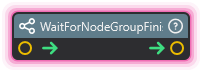
Section titled “WaitForNodeGroupFinished”💡 Simple Explanation: A checkpoint that waits for multiple things to finish before continuing. Like waiting for all your friends to arrive before starting the party.
⚙️ Technical Description: Synchronization barrier that collects all incoming triggers and proceeds only when all input connections have fired at least once.
🔍 Full Details & Examples
🔧 How It Works: Counts how many inputs are connected to it, then waits for each one to trigger at least once. Only when all inputs have fired does it execute the next node.
✨ Perfect For:
- Synchronizing parallel processes
- Waiting for multiple downloads or file loads to complete
- Ensuring all setup tasks finish before proceeding
- Coordinating multiple effect timelines
🎬 Streaming Example: “Load three different overlay elements in parallel. Use this node to wait until all three are loaded before displaying the combined overlay to viewers.”
🎯 Tips: Great for parallel processing patterns where you split work across multiple paths then need to merge back together. Prevents race conditions in complex graphs.
WhileLoop
Section titled “WhileLoop”💡 Simple Explanation: Keeps repeating an action as long as a condition stays true. Like saying “keep doing this until I tell you to stop.”
⚙️ Technical Description: While-loop that continuously executes while a boolean condition remains true, with optional delay between iterations and break interrupt capability.
🔍 Full Details & Examples
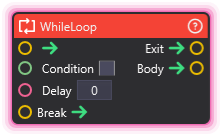
🔧 How It Works: Checks the Condition input. If true, fires the Body output and repeats. If false, fires the Exit output and stops. You can add delay between iterations or trigger Break to stop early.
✨ Perfect For:
- Repeating until a goal is reached
- Processing items until a list is empty
- Waiting for external conditions to change
- Creating responsive loops that adapt to changing data
👉 Inputs:
Condition(Boolean) - Keep looping while this is trueDelay(Float) - Wait time between iterationsBreak(Trigger) - Force loop to exit early
👈 Outputs:
Exit- Fires once when condition becomes falseBody- Fires each iteration when condition is true
🎬 Streaming Example: “Keep spawning confetti particles while the viewer count is above 100. When it drops below 100, stop spawning and trigger a ‘thank you’ message.”
🎯 Tips: Be careful with while-loops! Make sure your condition will eventually become false, or use Delay to prevent frame freezing. Use Break for emergency stops.