Menus
The menu bar at the top of OverMox provides access to file operations, editing commands, window management, and help resources.
File Menu
Section titled “File Menu”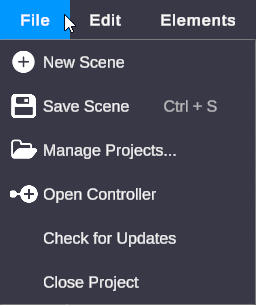
| Item | Description |
|---|---|
| New Scene | Create a new empty scene |
| Save Scene | Save the current scene |
| Manage Projects | Open the project management dialog |
| Open Controller | Launch the OverMox Controller for node graph editing |
| Check for Updates | Check if a newer version is available |
| Close Project | Close the current project |
Edit Menu
Section titled “Edit Menu”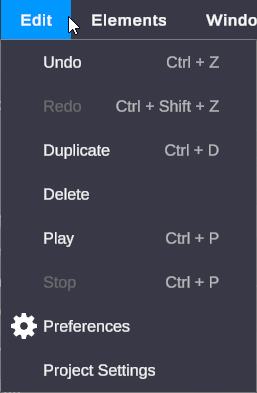
| Item | Shortcut | Description |
|---|---|---|
| Undo | Ctrl + Z | Undo the last action |
| Redo | Ctrl + Y | Redo the last undone action |
| Duplicate | Ctrl + D | Duplicate selected objects |
| Delete | Delete | Delete selected objects |
| Play | Space | Start playback |
| Stop | Space | Stop playback |
| Settings | None | Open Settings dialog |
| ProjectSettings | None | Open Project Settings dialog |
Window Menu
Section titled “Window Menu”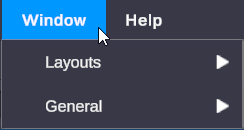
Layouts
Section titled “Layouts”| Item | Description |
|---|---|
| Default Layout | Reset all panels to the default arrangement |
General
Section titled “General”| Item | Description |
|---|---|
| Scene | Open or focus the Scene view |
| Game | Open or focus the Game view |
| Inspector | Open or focus the Inspector panel |
| Hierarchy | Open or focus the Hierarchy panel |
| Project | Open or focus the Project browser |
| Console | Open or focus the Console window |
| Transitions | Open the Transitions window |
| Filters | Open the Filters window |
| Asset Catalog | Open the Asset Catalog browser |
Elements Menu
Section titled “Elements Menu”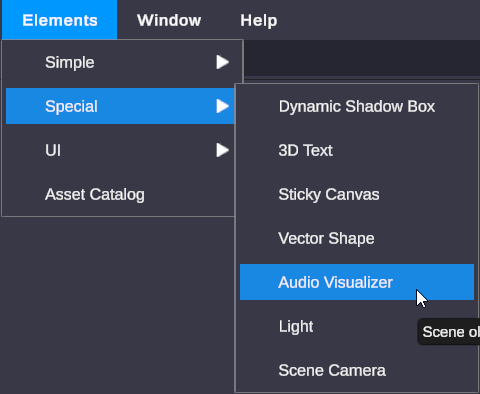
The Elements menu contains preset objects you can add to your scene. Items are organized by category and allow you to quickly spawn common objects like cameras, lights, shapes, and effects.
Click any item to add it to your scene at the default position.
Help Menu
Section titled “Help Menu”| Item | Description |
|---|---|
| Shortcuts | View keyboard shortcuts reference |
| About | View version and credits information |
| Install StreamDeck Plugin | Install the Stream Deck integration plugin |
Related
Section titled “Related”- Settings - Application preferences
- Project Settings - Project-specific configuration
- Controller Menus - Menus in the OverMox Controller