Inspector Panel
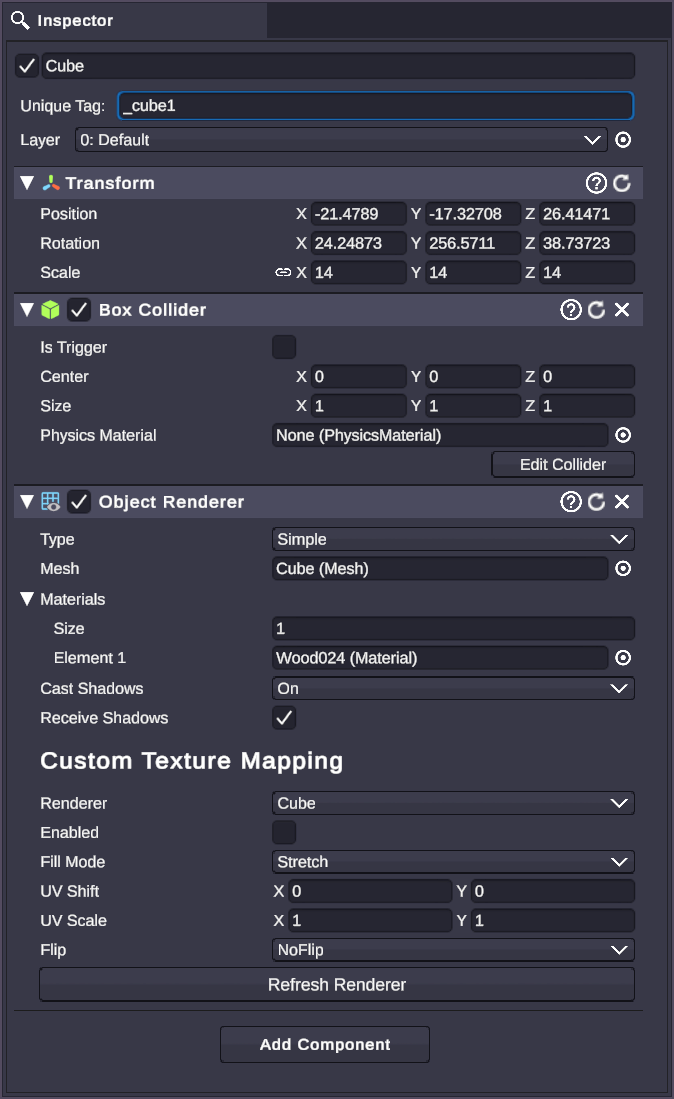
The Inspector panel displays detailed properties for whatever you have selected. Select a scene object or asset to view and edit its settings.
What the Inspector Shows
Section titled “What the Inspector Shows”The Inspector dynamically changes based on your selection:
| Selection | What You See |
|---|---|
| Scene object | Transform, components, and their properties |
| Asset | Asset-specific settings and preview |
| Multiple objects | Shared properties that can be edited together |
| Nothing selected | Empty or general settings |
Inspecting Scene Objects
Section titled “Inspecting Scene Objects”When you select a scene object in the Hierarchy or Stage, the Inspector shows:
Transform Section
Section titled “Transform Section”
Every scene object has a Transform that controls its position, rotation, and scale in 3D space.
| Property | Description |
|---|---|
| Position | X, Y, Z coordinates in the scene |
| Rotation | Orientation in degrees (X, Y, Z) |
| Scale | Size multiplier (X, Y, Z) |
Click and drag on number fields to adjust values, or type directly.
Components Section
Section titled “Components Section”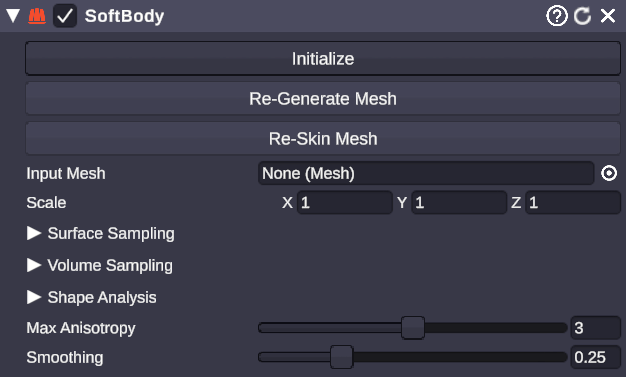
Below the Transform, you’ll see all components attached to the object. Each component has its own expandable section with properties.
Common components include:
- Object Renderer - Visual appearance and materials
- Physics Body - Physics simulation settings
- Animator - Animation controls
- Audio Source - Sound playback
Click the component header to expand or collapse its properties.
Editing Properties
Section titled “Editing Properties”Property Types
Section titled “Property Types”The Inspector presents different controls based on the property type:
| Type | Control |
|---|---|
| Number | Drag to adjust, or click to type |
| Boolean | Checkbox |
| Text | Text input field |
| Color | Color picker |
| Dropdown | Selection menu |
| Vector | Multiple number fields (X, Y, Z) |
| Object reference | Drag-drop target or picker |
| Asset reference | Drag from Project panel |
Drag to Adjust
Section titled “Drag to Adjust”For number fields, click and drag horizontally to increase or decrease the value. Hold Shift for larger increments, Ctrl for smaller.
Multi-Edit
Section titled “Multi-Edit”When multiple objects are selected, the Inspector shows properties they have in common. Editing a property changes it on all selected objects simultaneously.
If selected objects have different values for a property, the field shows a mixed state indicator.
Inspecting Assets
Section titled “Inspecting Assets”Select an asset in the Project panel to see its properties in the Inspector.
Common Asset Properties
Section titled “Common Asset Properties”Different asset types show different options:
Images/Videos:
- Preview thumbnail
- Resolution information
- Filter controls
- Import settings
Materials:
- Shader selection
- Color and texture properties
- Rendering options
Audio:
- Playback preview
- Volume settings
- Loop options
Adding Components
Section titled “Adding Components”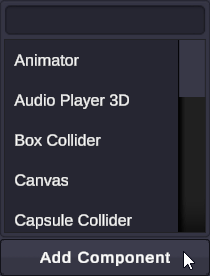
Add new functionality to scene objects by adding components:
- Select a scene object
- Scroll to the bottom of the Inspector
- Click “Add Component”
- Browse or search for the component type
- Click to add it
The new component appears in the Inspector ready for configuration.
See Components for details on available component types.
Managing Components
Section titled “Managing Components”Each component has a top bar with controls for managing it:
| Control | Description |
|---|---|
| Enable/Disable | Toggle the component on or off |
| Remove | Delete the component from the object |
To remove a component:
- Find the component in the Inspector
- Use the remove button in the component’s top bar
⚠️ Warning: Some components are required and cannot be removed (like Transform).
🎯 Lock the Inspector: If available, lock the Inspector to keep viewing a specific object while selecting others.
🎯 Right-Click for Options: Many properties have right-click context menus with additional options like Reset.
🎯 Use Tab: Press Tab to move between input fields quickly.
🎯 Drag References: Drag assets or objects directly onto reference fields instead of using pickers.
🎯 Collapse Unused: Collapse components you’re not actively editing to reduce visual clutter.
Related
Section titled “Related”- Hierarchy - Selecting scene objects
- Scene Objects - Understanding objects in your scene
- Components - Available component types
- Assets - Working with assets