Scene Objects
Scene Objects are the elements you place directly into the Stage (3D Viewport). They range from simple geometric shapes to complex functional tools that react to your stream.
Table of Contents
Section titled “Table of Contents”- Dynamic Shadow Box
- 3D Text
- Sticky Canvas
- Vector Shape
- Audio Visualizer
- Light
- Scene Camera
- Procedural UI Shapemaker
- Simple 3D Objects
- 2D/UI Objects
Dynamic Shadow Box
Section titled “Dynamic Shadow Box”🏷️ Category: Special Object
💡 Simple Explanation: A smart 3D box where you can easily change the material of each side individually.
⚙️ Technical Description: A parametric 3D box object that generates geometry based on an underlying model, allowing for dynamic material assignment to specific faces/slots.
📖 Full Details & Properties
🔧 How It Works: Unlike a standard cube which uses one material (or a complex UV map), this box exposes “slots” for each of its faces or components. You can assign different images or videos to each side without needing 3D modeling software.
✨ Perfect For:
- Creating 3D rooms or stages
- Display boxes for products or alerts
- Multi-screen setups (one screen per face)
📋 Properties:
| Property | Type | Description |
|---|---|---|
| Material Slots | List | A list of named slots (e.g., “Front”, “Top”). Drag materials here to assign them. |
| Build | Button | Triggers a rebuild of the model geometry. Use this if the shape looks wrong. |
🎬 Streaming Example: “[Dynamic Shadow Box] used as a ‘room’ for your avatar, with different wallpapers on each wall.”
3D Text
Section titled “3D Text”🏷️ Category: Special Object
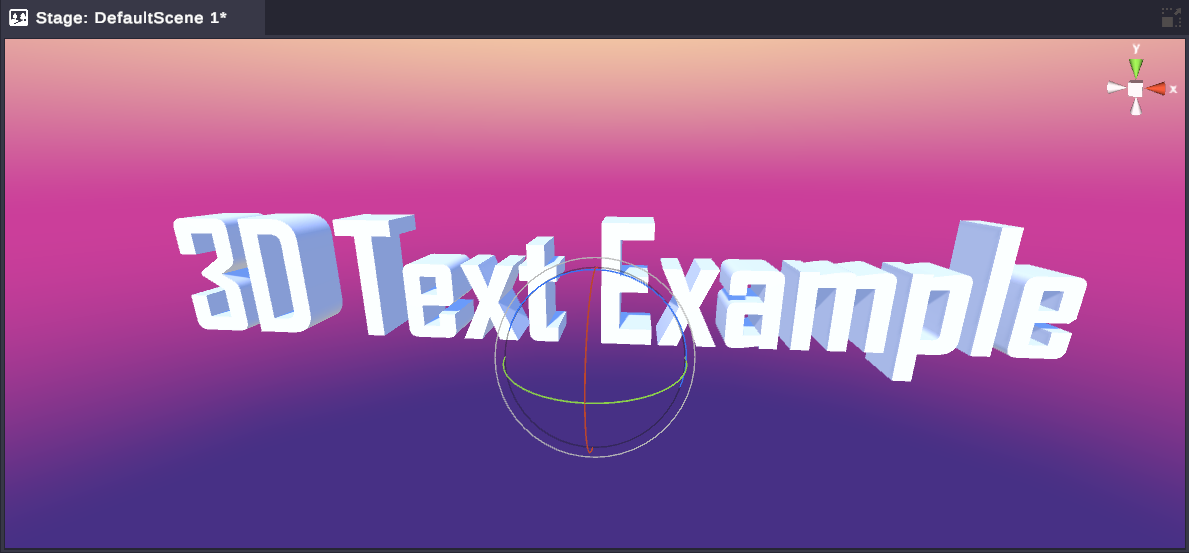
💡 Simple Explanation: Text that exists as a 3D object in your scene.
⚙️ Technical Description: A 3D text object that has depth and volume, unlike standard 2D UI text.
📖 Full Details & Properties
🔧 How It Works: Generates 3D geometry for text characters. This text can cast shadows, receive lighting, and be rotated in 3D space just like a cube or sphere.
✨ Perfect For:
- Floating logos
- Big 3D headers
- Signage in your virtual set
📋 Properties:
| Property | Description |
|---|---|
| Text | The content string to display. |
| Font | The font asset to use. |
| Size | The scale of the text. |
| Depth | The extrusion depth (thickness) of the 3D letters. |
| Bevel | The amount of beveling on the edges. |
| Bevel Style | The style of the bevel (e.g., Round, Flat). |
| Front Material | Material for the face of the text. |
| Side Material | Material for the extruded sides. |
| Bevel Material | Material for the beveled edges. |
| Shadow Cast Mode | How the text casts shadows (On, Off, TwoSided, ShadowsOnly). |
| Receive Shadows | Whether the text receives shadows from other objects. |
| Alignment | Major (Horizontal) and Minor (Vertical) alignment. |
| Spacing | Line Spacing and Letter Spacing. |
🎬 Streaming Example: “[3D Text] displaying your channel name floating above the stage.”
Sticky Canvas
Section titled “Sticky Canvas”🏷️ Category: Special Object
💡 Simple Explanation: A canvas that sticks to the camera lens. It looks like a 2D UI overlay but exists in the 3D world.
⚙️ Technical Description: A specialized render quad that automatically aligns its position and rotation to remain fixed in front of a specific camera, simulating a Screen Space UI while remaining in World Space.
📖 Full Details & Properties
🔧 How It Works: Every frame, this object calculates the camera’s position and rotation and moves itself to stay exactly in front of it. This creates the illusion of a 2D HUD (Heads Up Display) or overlay, but allows for 3D lighting and effects to still interact with it.
✨ Perfect For:
- HUDs and UI overlays
- “Sticker” effects that follow the view
- Chat boxes that need to stay on screen
📋 Properties:
| Property | Type | Description |
|---|---|---|
| Render On All Cameras | Bool | If true, it appears on every camera. If false, only on specific ones. |
| Cameras | List | The specific cameras this canvas should stick to. |
| Content | Material | The material (image/video/web source) to display. |
| Canvas Distance | Float | How far from the camera the canvas floats. |
🎬 Streaming Example: “[Sticky Canvas] holding your chat box so it’s always visible, even when the camera moves.”
Vector Shape
Section titled “Vector Shape”🏷️ Category: Special Object
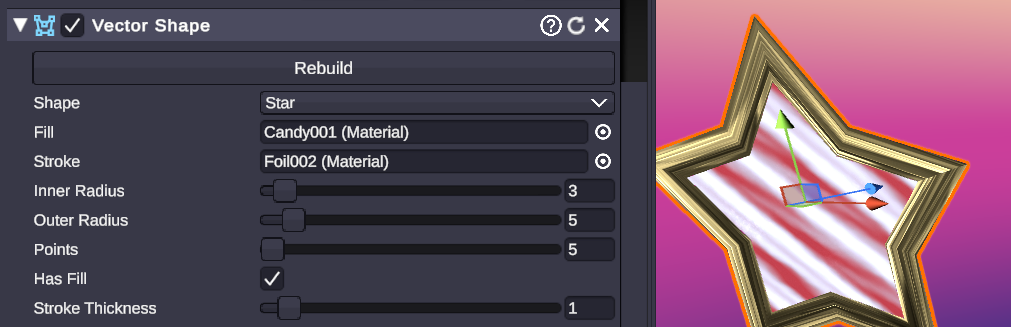
💡 Simple Explanation: Crisp, clean 2D shapes like circles, stars, and arrows.
⚙️ Technical Description: Generates high-quality 2D geometry based on vector primitives. Supports fills and strokes.
📖 Full Details & Properties
🔧 How It Works: Procedurally generates mesh geometry for common shapes. Unlike an image texture, these stay crisp at any resolution because they are real geometry.
✨ Perfect For:
- UI backgrounds
- Decorative elements
- Arrows and pointers
- Masks
📋 Properties:
| Property | Description |
|---|---|
| Rebuild | Button to regenerate the shape mesh. |
| Shape | The type of shape to generate (e.g., Rectangle, Circle, Arrow, Star, PolyLine). |
| Fill | Material used for the interior of the shape. |
| Stroke | Material used for the outline of the shape. |
| [Shape Specific] | Dynamic properties based on the selected shape (e.g., Sides, Radius, Thickness, Corner Radius). |
🎬 Streaming Example: “[Vector Shape] creating a rounded rectangle background for your webcam border.”
Audio Visualizer
Section titled “Audio Visualizer”🏷️ Category: Special Object
💡 Simple Explanation: Makes things move or light up to the music. Creates animated bar visualizations that react to audio in real-time.
⚙️ Technical Description: Analyzes audio spectrum data via FFT (Fast Fourier Transform) from microphones, system audio, or in-scene audio players. Generates customizable bar-based visualizations and exposes spectrum data for use with the DecibelLevel node.
📖 Full Details & Properties
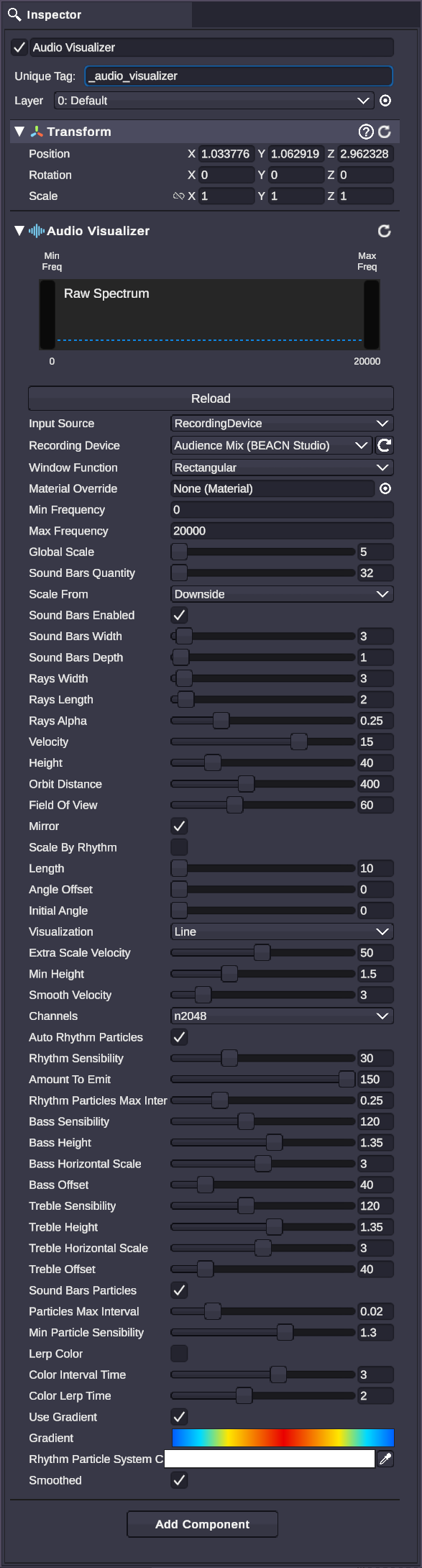
🔧 How It Works:
Listens to an audio source and breaks it down into frequency bands (bass, mids, treble). It renders animated bars that respond to the audio and can output volume data via the DecibelLevel node for driving other effects.
✨ Perfect For:
- Music visualizers for streams
- Talking animations (lip sync)
- Beat-reactive lighting and effects
- VU meters and audio level displays
Input Source Modes
Section titled “Input Source Modes”The Audio Visualizer supports four different audio input modes:
| Mode | Description | Shows |
|---|---|---|
| Recording Device | Captures from a microphone or audio input device | Device dropdown |
| Playback Device | Captures system audio (loopback) - everything playing through your speakers | Device dropdown |
| Stage Audio Player | Analyzes audio from a specific Audio Player 3D in your scene | Audio Player selector |
| All Stage Audio | Analyzes all audio currently playing in the scene | Nothing extra |
📋 Core Settings:
| Property | Type | Description |
|---|---|---|
| Reload | Button | Refreshes the audio device connection and restarts analysis |
| Input Source | Enum | Audio input type (see modes above) |
| Recording/Playback Device | Dropdown | Select specific audio hardware (label changes based on Input Source) |
| Audio Player | Object | Reference to Audio Player 3D component (only for Stage Audio Player mode) |
| Window Function | Enum | FFT analysis method: Rectangular, Triangle, Hamming, Hanning, Blackman, BlackmanHarris |
| Material Override | Material | Custom material for visualization bars |
| Min Frequency | Float | Lower frequency bound (0-20000 Hz) |
| Max Frequency | Float | Upper frequency bound (0-20000 Hz) |
📋 Visualization Settings:
| Property | Type | Description |
|---|---|---|
| Global Scale | Float | Overall size multiplier for the visualization (0.75-10000) |
| Sound Bars Quantity | Int | Number of frequency bars to display (32-512) |
| Scale From | Enum | Bar growth direction: Center or Downside |
| Sound Bars Enabled | Bool | Toggle bar visibility |
| Sound Bars Width | Float | Width of each bar (0-100) |
| Sound Bars Depth | Float | Depth of each bar (0-100) |
| Visualization | Enum | Layout shape: Line, Circle, ExpansibleCircle, Sphere, Square |
| Mirror | Bool | Mirror the visualization (bass in center, treble on edges) |
| Scale By Rhythm | Bool | Enable rhythm-reactive scaling |
| Length | Float | Spread/length of the visualization (10-200) |
| Angle Offset | Float | Rotation offset for circular visualizations (0-360) |
| Initial Angle | Float | Starting angle for circular visualizations (0-360) |
| Extra Scale Velocity | Float | Speed of scale animations (1-100) |
| Min Height | Float | Minimum bar height (0-5) |
| Smooth Velocity | Int | Smoothing amount for bar movement (1-15) |
📋 Ray Settings:
| Property | Type | Description |
|---|---|---|
| Rays Width | Float | Width of ray particles (0-100) |
| Rays Length | Float | Length of ray particles (0-50) |
| Rays Alpha | Float | Transparency of rays (0-1) |
📋 Camera Settings:
| Property | Type | Description |
|---|---|---|
| Velocity | Float | Camera orbit rotation speed (-35 to 35) |
| Height | Float | Camera height offset (0-200) |
| Orbit Distance | Float | Distance from center (0-1000) |
| Field Of View | Int | Camera FOV (1-179) |
📋 Frequency Analysis:
| Property | Type | Description |
|---|---|---|
| Channels | Enum | FFT sample size: n512, n1024, n2048, n4096, n8192 (higher = more accurate, more CPU) |
📋 Bass Settings:
| Property | Type | Description |
|---|---|---|
| Bass Sensibility | Float | Sensitivity to bass frequencies (1-300) |
| Bass Height | Float | Height multiplier for bass bars (0.5-2) |
| Bass Horizontal Scale | Int | Width multiplier for bass bars (1-5) |
| Bass Offset | Int | Starting frequency bin for bass range (0-256) |
📋 Treble Settings:
| Property | Type | Description |
|---|---|---|
| Treble Sensibility | Float | Sensitivity to treble frequencies (1-300) |
| Treble Height | Float | Height multiplier for treble bars (0.5-2) |
| Treble Horizontal Scale | Int | Width multiplier for treble bars (1-5) |
| Treble Offset | Int | Starting frequency bin for treble range (0-256) |
📋 Rhythm Detection (Experimental):
| Property | Type | Description |
|---|---|---|
| Auto Rhythm Particles | Bool | Emit particles on detected beats |
| Rhythm Sensibility | Float | Beat detection threshold (0-100) |
| Amount To Emit | Int | Particles per detected beat (1-150) |
| Rhythm Particles Max Interval | Float | Minimum time between particle bursts (0.01-1) |
📋 Appearance Settings:
| Property | Type | Description |
|---|---|---|
| Sound Bars Particles | Bool | Enable particles on bar tips |
| Particles Max Interval | Float | Time between particle emissions (0-0.1) |
| Min Particle Sensibility | Float | Volume threshold for particles (0.1-2) |
| Lerp Color | Bool | Smoothly transition between colors |
| Color Interval Time | Float | Time between color changes (0.1-5) |
| Color Lerp Time | Float | Duration of color transitions (0.1-5) |
| Use Gradient | Bool | Use gradient instead of discrete colors |
| Gradient | Gradient | Color gradient for visualization |
| Rhythm Particle System Color | Color | Color for rhythm-triggered particles |
| Smoothed | Bool | Apply smoothing to spectrum data |
🎬 Streaming Examples:
- “Create a circle visualizer that pulses with your Spotify music using Playback Device mode.”
- “Make a talking head animation react to your microphone using Recording Device and the DecibelLevel node.”
- “Sync bar heights to in-game sound effects using Stage Audio Player mode.”
🎯 Tips:
- Use the
DecibelLevelnode to get the volume level from this object for driving other effects. - Playback Device captures desktop audio without needing virtual audio cables - it captures everything you hear (game + music + Discord).
- Higher Channels values give more accurate frequency analysis but use more CPU.
- Adjust Bass Sensibility and Treble Sensibility to balance the visualization for your audio source.
- Use Mirror mode for symmetric visualizations where bass appears in the center.
- The Min/Max Frequency sliders let you focus on specific frequency ranges (e.g., just bass for a subwoofer effect).
- For voice reactivity, use Recording Device mode. For music reactivity, use Playback Device mode.
🏷️ Category: Special Object
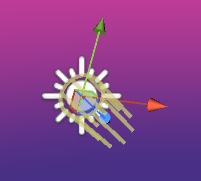
💡 Simple Explanation: Illuminates your scene.
⚙️ Technical Description: Adds a light source to the scene (Directional, Point, Spot).
📖 Full Details & Properties
🔧 How It Works: Simulates a real light source. Essential for seeing 3D objects.
Types:
- Directional: Like the sun, illuminates everything from one direction.
- Point: Like a lightbulb, shines in all directions from a point.
- Spot: Like a flashlight, shines in a cone.
- Rectangle: A flat panel light (Area Light).
📋 Properties:
| Property | Description |
|---|---|
| Type | Directional, Point, Spot, Rectangle. |
| Color | The color of the light. |
| Intensity | Brightness of the light. |
| Range | How far the light reaches (Point/Spot). |
| Spot Angle | The width of the cone (Spot). |
| Shadow Type | No Shadows, Hard Shadows, Soft Shadows. |
| Shadow Strength | Darkness of the shadows (0-1). |
| Culling Mask | Selects which layers this light affects. |
🎬 Streaming Example: “[Light] adding a dramatic spotlight on your avatar.”
Scene Camera
Section titled “Scene Camera”🏷️ Category: Special Object
💡 Simple Explanation: Another viewpoint for your scene.
⚙️ Technical Description: Adds an additional camera to the scene.
📖 Full Details & Properties
🔧 How It Works: Adds a new camera object. You can switch to this camera using the SwitchCamera node.
✨ Perfect For:
- Multi-camera setups (e.g., “Close up” vs “Wide shot”)
- Render textures
📋 Properties:
| Property | Description |
|---|---|
| Clear Flags | What to show in empty space (Skybox, Solid Color, Depth Only). |
| Background | The background color if Clear Flags is Solid Color. |
| Culling Mask | Selects which objects this camera can see. |
| Projection | Perspective (3D) or Orthographic (2D/Flat). |
| Field of View | How wide the camera sees (Zoom). |
| Clipping Planes | Near and Far distances to render. |
| Viewport Rect | Where on the screen this camera draws (usually full screen 0,0,1,1). |
| Depth | Drawing order priority. |
| Target Texture | (Optional) Render directly to a texture asset. |
🎬 Streaming Example: “[Scene Camera] placed backstage to show a ‘behind the scenes’ view on a monitor.”
Procedural UI Shapemaker
Section titled “Procedural UI Shapemaker”🏷️ Category: 2D/UI Object
💡 Simple Explanation: Creates UI buttons and panels that look perfect at any size.
⚙️ Technical Description: A tool for generating highly optimized procedural UI sprites (Rounded Rectangles, Circles) without texture assets.
📖 Full Details & Properties
🔧 How It Works: Generates a sprite with mathematical rounded corners and borders. It’s much more efficient and flexible than importing PNGs for every button size.
✨ Perfect For:
- Creating custom UI panels
- Buttons and backgrounds
- Clean, modern overlays
📋 Properties:
| Property | Description |
|---|---|
| Source Image | Optional sprite to apply to the shape. |
| Color | Base color of the shape. |
| Material | Material applied to the shape. |
| Shape | The geometric shape: Rectangle, Circle, Triangle, Pentagon, Hexagon, N-Star. |
| Stroke Width | Thickness of the shape’s stroke. |
| Outline Width | Thickness of the outer outline. |
| Outline Color | Color of the outline. |
| Falloff Distance | Softness of the edges (anti-aliasing). |
| Corner Radius | Roundness of the corners (for Rectangle/Triangle/etc.). |
| Gradient | Adds a color gradient effect to the shape. |
| Fill Type | Simple, Sliced, Tiled, or Filled. |
🎬 Streaming Example: “[Procedural UI Shapemaker] used to create a clean background panel for your donation goal.”
Simple 3D Objects
Section titled “Simple 3D Objects”🏷️ Category: Standard Object
💡 Simple Explanation: Basic geometric shapes for blocking out scenes.
📖 Full Details & Types
- Empty: An invisible container object. Good for grouping other objects.
- Cube: A standard box.
- Capsule: A pill shape.
- Sphere: A ball.
- Big Sphere: A larger ball (often used for skyboxes).
- Cylinder: A tube.
- Plane: A flat 1-sided floor.
- Quad: A flat 1-sided square (often used for screens).
2D/UI Objects
Section titled “2D/UI Objects”🏷️ Category: Standard Object
💡 Simple Explanation: Objects designed for user interfaces.
📖 Full Details & Types
Standard 2D text for UI.
Note: Uses
TextMeshProUGUI.
| Property | Description |
|---|---|
| Text | The text content. |
| Font | The font asset. |
| Font Style | Bold, Italic, Underline, Strikethrough, etc. |
| Font Size | Size of the text in points. |
| Color | Text color. |
| Alignment | Horizontal and Vertical alignment (Left, Center, Right, Top, Bottom). |
| Wrapping | Whether text wraps to the next line or overflows. |
| Overflow | How to handle text that doesn’t fit (Overflow, Ellipsis, Truncate). |
| Spacing | Character, Word, Line, and Paragraph spacing. |
| Rich Text | Enables HTML-like tags for formatting (e.g., <b>bold</b>). |
A standard 2D image container.
| Property | Description |
|---|---|
| Source Image | The sprite to display. |
| Color | Tint color for the image. |
| Material | Optional material for special effects. |
| Image Type | Simple (stretch), Sliced (9-slice), Tiled (repeat), Filled (radial/linear progress). |
| Preserve Aspect | Keeps the image from being distorted when resized. |
| Set Native Size | Resets the size to the original image dimensions. |
| Raycast Target | If checked, the image blocks mouse clicks. |
Canvas
Section titled “Canvas”The root container for all UI elements.
| Property | Description |
|---|---|
| Render Mode | Screen Space - Overlay (on top of everything), Screen Space - Camera (aligned with a camera), or World Space (floating in 3D). |
| Pixel Perfect | Forces UI elements to align with pixels for sharpness. |
| Sort Order | Determines drawing order relative to other canvases. |
| Target Display | Which display monitor to render to. |