Math
Math nodes handle the arithmetic, comparisons, and vector calculations inside your graphs. Use them whenever a value needs to be computed, clamped, combined, or checked before it drives an effect.
Absolute
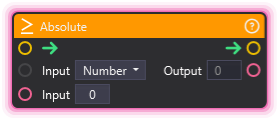
Section titled “Absolute”💡 Simple Explanation: Removes the negative sign from a number. Turns -5 into 5, and keeps 5 as 5.
⚙️ Technical Description: Calculates the absolute value of a number or Vector3. For vectors, applies absolute value to each component independently.
🔍 Full Details & Examples
🔧 How It Works: Takes any number and returns its positive version. For Vector3, each X, Y, Z component becomes positive.
✨ Perfect For:
- Getting distance regardless of direction
- Ensuring values are always positive
- Calculating magnitude of differences
👉 Inputs:
Input Type(Dropdown) - Number or VectorInput(Float/Vector3) - Value to get absolute value of
👈 Outputs:
Output(Float/Vector3) - Positive version of input
🎬 Streaming Example: “Calculate how far an object moved from its starting position, regardless of whether it moved left or right.”
🎯 Tips: Useful for distance calculations where direction doesn’t matter. Vector mode makes each component positive independently.
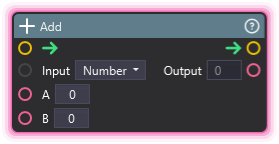
💡 Simple Explanation: Adds two numbers or vectors together. Like a calculator’s plus button.
⚙️ Technical Description: Performs addition on two Float or Vector3 values, returning the sum.
🔍 Full Details & Examples
🔧 How It Works: Takes two values A and B and returns A + B. For vectors, adds each component (X+X, Y+Y, Z+Z).
✨ Perfect For:
- Accumulating totals (donation counters, scores)
- Combining positions or offsets
- Incrementing values
👉 Inputs:
Input Type(Dropdown) - Number or VectorA(Float/Vector3) - First valueB(Float/Vector3) - Second value
👈 Outputs:
Output(Float/Vector3) - Sum of A + B
🎬 Streaming Example: “Add each new donation amount to a running total variable to track total donations for the stream.”
🎯 Tips: Use with variables to create counters. Vector addition is great for combining movement offsets.
Comparison
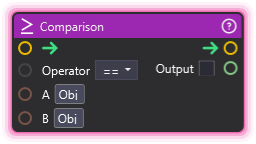
Section titled “Comparison”💡 Simple Explanation: Compares two values and tells you if the comparison is true or false. Like checking if one number is bigger than another.
⚙️ Technical Description: Compares two values using comparison operators (<, >, <=, >=, ==, !=). Supports numbers, booleans, strings, and Vector3.
🔍 Full Details & Examples
🔧 How It Works: Takes two values and a comparison operator, then returns true or false based on whether the comparison is correct. Use with Conditional node to make decisions.
✨ Perfect For:
- Checking donation amounts (“if donation > $10, trigger special effect”)
- Validating viewer counts or scores
- Triggering effects only when conditions are met
- Creating conditional logic flows
👉 Inputs:
Operator(Dropdown) - <, >, <=, >=, ==, != (equal, not equal)A(varies) - First valueB(varies) - Second value
👈 Outputs:
Output(Boolean) - True if comparison holds, false otherwise
🎬 Streaming Example: “Compare the current donation total to a goal of 1000. If >= 1000, trigger a celebration effect.”
🎯 Tips: Works with numbers, text, and vectors. Use == for “equal to”, != for “not equal to”. Perfect partner for Conditional node.
ComposeVector3
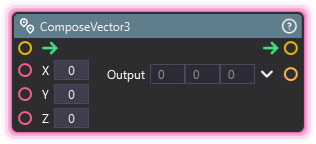
Section titled “ComposeVector3”💡 Simple Explanation: Builds a Vector3 from three individual Float values (X, Y, Z). The reverse of decomposing a vector.
⚙️ Technical Description: Constructs a Vector3 from three Float port inputs and outputs the combined vector. Essential for building dynamic vectors from computed components.
🔍 Full Details & Examples
🔧 How It Works: Reads each axis from a separate Float port, packs them into a Vector3, and outputs the result. You compute X, Y, Z independently with whatever logic you want and this node assembles them.
✨ Perfect For:
- Building velocity vectors from separate X/Y/Z components
- Constructing position offsets from individual axis values
- Converting MIDI or sensor values to 3D directions
- Workflows where each vector component is computed independently
👉 Inputs:
X(Float) - X componentY(Float) - Y componentZ(Float) - Z component
👈 Outputs:
Output(Vector3) - The composed vector (X, Y, Z)
🎬 Streaming Example: “Drive a Scene Object’s velocity from three separate Float ports - X from a MIDI knob, Y constant, Z from chat-mood detection - so each axis reacts to its own input source.”
🎯 Tips: Use this instead of TypeConverter (Float to Vector) which sets all three axes to the same value. ComposeVector3 lets you set each axis independently.
Divide
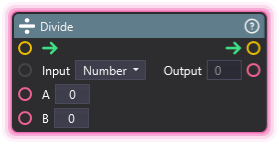
Section titled “Divide”💡 Simple Explanation: Divides one number by another. Like a calculator’s division button.
⚙️ Technical Description: Performs division on two Float or Vector3 values. For vectors, divides each component individually.
🔍 Full Details & Examples
🔧 How It Works: Takes two values A and B and returns A / B. For vectors, divides each component (X/X, Y/Y, Z/Z).
✨ Perfect For:
- Calculating percentages and ratios
- Averaging values
- Scaling down positions or sizes
- Converting between units
👉 Inputs:
Input Type(Dropdown) - Number or VectorA(Float/Vector3) - Dividend (number to divide)B(Float/Vector3) - Divisor (number to divide by)
👈 Outputs:
Output(Float/Vector3) - Result of A / B
🎬 Streaming Example: “Divide the current donation total by the number of donors to show the average donation amount.”
🎯 Tips: Division by zero is handled gracefully. Vector mode divides each component separately.
LogicGate
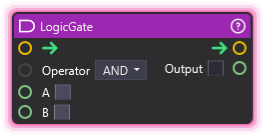
Section titled “LogicGate”💡 Simple Explanation: Combines two boolean inputs using AND, OR, or XOR.
⚙️ Technical Description: Takes two Boolean inputs and returns a single Boolean based on the selected logical operator. Useful for chaining Comparison results together.
🔍 Full Details & Examples
🔧 How It Works: Picks one of three operators (AND, OR, XOR) from the Operator dropdown and applies it to inputs A and B. AND fires when both are true, OR when either is true, XOR when exactly one is true.
✨ Perfect For:
- Combining multiple conditions into a single branch
- Testing layer membership against a set of layers (chain with
GetLayerandComparison) - Building complex trigger logic from simple boolean checks
- Situations where one reaction should fire if several conditions hold
👉 Inputs:
Operator(Dropdown) - AND, OR, or XORA(Boolean) - First boolean inputB(Boolean) - Second boolean input
👈 Outputs:
Output(Boolean) - Result of the logical operation
🎬 Streaming Example: “Combine ‘follower count > 100’ and ‘subscriber count > 10’ through a LogicGate set to AND, then route the result into a Conditional so the celebration effect only fires once both milestones are hit.”
🎯 Tips: Chain multiple LogicGates to combine more than two booleans. Pairs naturally with Comparison (produces bools) and Conditional (branches on a bool).
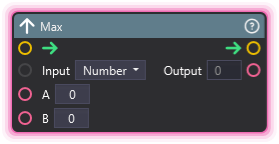
💡 Simple Explanation: Returns the larger of two values. Compares A and B and gives you whichever is bigger.
⚙️ Technical Description: Returns the maximum of two Float or Vector3 values. For vectors, returns the component-wise maximum.
🔍 Full Details & Examples
🔧 How It Works: Compares A and B and returns whichever is larger. For vectors, compares each component and returns the larger of each.
✨ Perfect For:
- Clamping values to a minimum threshold
- Finding the highest score or value
- Ensuring values don’t go below a floor
- Comparing distances or sizes
👉 Inputs:
Input Type(Dropdown) - Number or VectorA(Float/Vector3) - First valueB(Float/Vector3) - Second value
👈 Outputs:
Output(Float/Vector3) - The larger of A or B
🎬 Streaming Example: “Ensure the volume level never drops below 0.1 by taking the max of the current volume and 0.1.”
🎯 Tips: Great for setting minimum thresholds. Use with Min to clamp values to a range. Vector mode compares components individually.
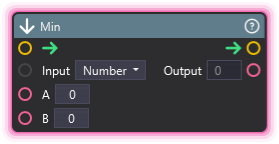
💡 Simple Explanation: Returns the smaller of two values. Compares A and B and gives you whichever is smaller.
⚙️ Technical Description: Returns the minimum of two Float or Vector3 values. For vectors, returns the component-wise minimum.
🔍 Full Details & Examples
🔧 How It Works: Compares A and B and returns whichever is smaller. For vectors, compares each component and returns the smaller of each.
✨ Perfect For:
- Clamping values to a maximum threshold
- Finding the lowest score or value
- Ensuring values don’t exceed a ceiling
- Limiting distances or sizes
👉 Inputs:
Input Type(Dropdown) - Number or VectorA(Float/Vector3) - First valueB(Float/Vector3) - Second value
👈 Outputs:
Output(Float/Vector3) - The smaller of A or B
🎬 Streaming Example: “Cap the maximum speed at 100 by taking the min of the current speed and 100.”
🎯 Tips: Great for setting maximum limits. Use with Max to clamp values to a range. Vector mode compares components individually.
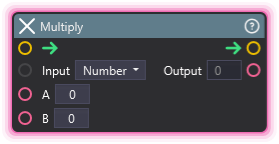
Multiply
Section titled “Multiply”💡 Simple Explanation: Multiplies two numbers or vectors together. Like a calculator’s times button.
⚙️ Technical Description: Performs multiplication on two Float or Vector3 values. For vectors, uses component-wise multiplication (Vector3.Scale).
🔍 Full Details & Examples
🔧 How It Works: Takes two values A and B and returns A × B. For vectors, multiplies each component (X×X, Y×Y, Z×Z).
✨ Perfect For:
- Scaling values up or down
- Applying multipliers to scores or effects
- Calculating areas or volumes
- Percentage calculations
👉 Inputs:
Input Type(Dropdown) - Number or VectorA(Float/Vector3) - First valueB(Float/Vector3) - Second value
👈 Outputs:
Output(Float/Vector3) - Product of A × B
🎬 Streaming Example: “Multiply the base reward by a 2x multiplier when a subscriber donates.”
🎯 Tips: Multiply by values less than 1 to reduce (0.5 = half). Vector mode uses component-wise scaling.
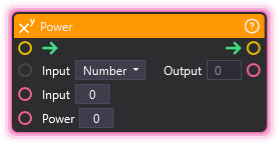
💡 Simple Explanation: Raises a number to a power. Like calculating 2³ = 8.
⚙️ Technical Description: Raises a Float or Vector3 to the specified exponent. For vectors, applies the power to each component independently.
🔍 Full Details & Examples
🔧 How It Works: Takes a base value and an exponent, returns base^exponent. For vectors, each X, Y, Z component is raised to the power.
✨ Perfect For:
- Exponential scaling effects
- Quadratic or cubic curves
- Acceleration calculations
- Non-linear progressions
👉 Inputs:
Input Type(Dropdown) - Number or VectorInput(Float/Vector3) - Base valuePower(Float) - Exponent
👈 Outputs:
Output(Float/Vector3) - Result of base^power
🎬 Streaming Example: “Create an exponential growth effect where each level requires 2^level points to unlock.”
🎯 Tips: Power of 2 = squared, power of 0.5 = square root. Negative powers give fractions (2^-1 = 0.5).
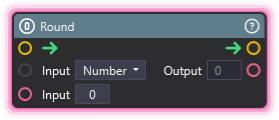
💡 Simple Explanation: Rounds a number to the nearest whole number. Turns 3.7 into 4 and 3.2 into 3.
⚙️ Technical Description: Rounds a Float or Vector3 to the nearest integer. For vectors, rounds each component independently.
🔍 Full Details & Examples
🔧 How It Works: Takes a decimal number and rounds to the nearest whole number. Values at .5 round up. For vectors, each component is rounded.
✨ Perfect For:
- Displaying clean numbers to viewers
- Snapping positions to a grid
- Converting calculations to whole numbers
- Removing decimal precision
👉 Inputs:
Input Type(Dropdown) - Number or VectorInput(Float/Vector3) - Value to round
👈 Outputs:
Output(Float/Vector3) - Rounded value
🎬 Streaming Example: “Round the donation percentage to show ‘75%’ instead of ‘74.6%’ on screen.”
🎯 Tips: For floor (always down) or ceiling (always up), use Min or Max with rounded values.
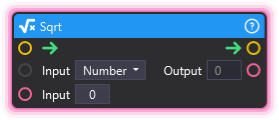
💡 Simple Explanation: Calculates the square root of a number. The opposite of squaring - √9 = 3.
⚙️ Technical Description: Calculates the square root of a Float or Vector3. For vectors, applies square root to each component independently.
🔍 Full Details & Examples
🔧 How It Works: Returns the number that, when multiplied by itself, equals the input. √25 = 5 because 5 × 5 = 25. For vectors, each component is square-rooted.
✨ Perfect For:
- Distance calculations
- Easing curves and smooth transitions
- Physics calculations
- Normalizing exponential values
👉 Inputs:
Input Type(Dropdown) - Number or VectorInput(Float/Vector3) - Value to take square root of
👈 Outputs:
Output(Float/Vector3) - Square root of input
🎬 Streaming Example: “Use square root to create a smooth ease-out effect where rapid initial progress slows down over time.”
🎯 Tips: Only works with positive numbers. Equivalent to Power with exponent 0.5.
Subtract
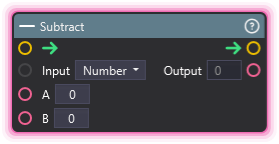
Section titled “Subtract”💡 Simple Explanation: Subtracts one number from another. Like a calculator’s minus button.
⚙️ Technical Description: Performs subtraction on two Float or Vector3 values, returning the difference.
🔍 Full Details & Examples
🔧 How It Works: Takes two values A and B and returns A - B. For vectors, subtracts each component (X-X, Y-Y, Z-Z).
✨ Perfect For:
- Calculating differences or changes
- Decrementing counters
- Finding direction vectors (target - current)
- Removing amounts from totals
👉 Inputs:
Input Type(Dropdown) - Number or VectorA(Float/Vector3) - Value to subtract fromB(Float/Vector3) - Value to subtract
👈 Outputs:
Output(Float/Vector3) - Result of A - B
🎬 Streaming Example: “Subtract 1 from the countdown timer each second to count down to a giveaway.”
🎯 Tips: Subtracting vectors gives you the direction from B to A. Result can be negative if B > A.
VectorDistance
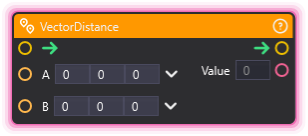
Section titled “VectorDistance”💡 Simple Explanation: Measures how far apart two 3D positions are. Like measuring the straight-line distance between two points in space.
⚙️ Technical Description: Calculates the Euclidean distance between two Vector3 points in 3D space.
🔍 Full Details & Examples
🔧 How It Works: Takes two position vectors and calculates the straight-line distance between them using the Pythagorean theorem in 3D.
✨ Perfect For:
- Checking if objects are close enough to interact
- Measuring distances for physics or graph logic
- Proximity detection
- Spatial calculations
👉 Inputs:
A(Vector3) - First positionB(Vector3) - Second position
👈 Outputs:
- (Float) - Distance between points
🎬 Streaming Example: “Check the distance between a spawned object and the camera. If less than 5 units, trigger a special close-up effect.”
🎯 Tips: Returns a positive number (distance is never negative). Use with Comparison to check if distance meets thresholds. Works in 3D space (X, Y, Z).
VectorNormalize
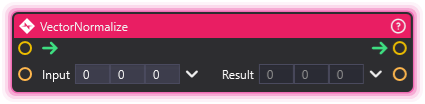
Section titled “VectorNormalize”💡 Simple Explanation: Converts a direction vector to length 1 while keeping it pointing the same way. Like reducing an arrow to standard size while keeping it aimed in the same direction.
⚙️ Technical Description: Normalizes a Vector3 to unit length (magnitude = 1), preserving direction.
🔍 Full Details & Examples
🔧 How It Works: Takes a vector of any length and scales it to exactly length 1 (unit vector). The direction stays the same, only the magnitude changes.
✨ Perfect For:
- Creating direction vectors for physics or movement
- Normalizing input for consistent calculations
- Converting position differences to pure directions
- Standardizing vector math inputs
👉 Inputs:
Input(Vector3) - Vector to normalize
👈 Outputs:
- (Vector3) - Unit vector (length = 1, same direction)
🎬 Streaming Example: “Get the direction from camera to object by subtracting positions, then normalize it to use as a pure direction for movement.”
🎯 Tips: Result always has magnitude 1. Direction unchanged. Useful when you only care about direction, not distance. Normalizing a zero vector returns zero.