Mesh Effects
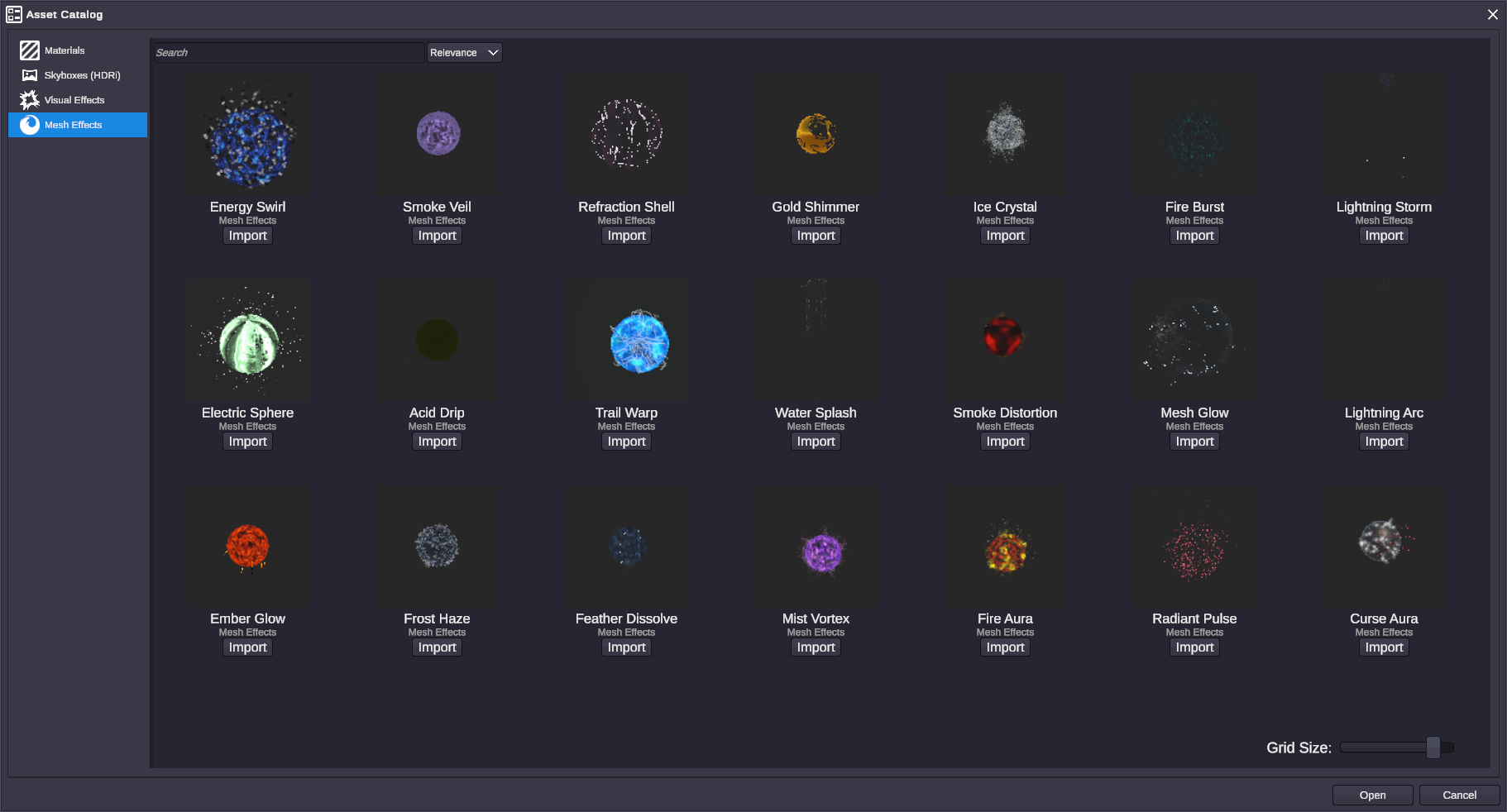
Mesh Effects are shader-driven visual effects that wrap themselves around an object’s mesh surface - fire crawling up a prop, frost forming across a logo, electricity arcing over a model. OverMox ships 21 ready-to-use mesh effects, applied in two clicks from the Asset Catalog.
Applying a Mesh Effect
Section titled “Applying a Mesh Effect”- In the Hierarchy, select the object you want to apply the effect to. The object (or one of its children) must have a mesh renderer.
- Right-click the object → Add → Mesh Effect.
- The Asset Catalog opens, filtered to the Mesh Effect tab.
- Click the Import button on the effect you want (same interaction as Materials and HDRIs).
- The effect appears as a new child scene object under your target mesh, named after the effect you chose.
⚠️ 3D Text and Dynamic Shadow Box objects: OverMox will prompt you to convert these to a simple mesh before the effect can be applied. Say Yes to continue.
⚠️ Multiple child meshes: If your selected object has several child mesh renderers, OverMox creates one effect instance per renderer so every surface gets wrapped.
What Ships
Section titled “What Ships”The 21 built-in mesh effects fall into a few broad themes. Browse the Mesh Effect tab of the Asset Catalog to see previews and pick the one you want.
- Fire and burn - flames, embers, scorching surfaces
- Ice and frost - frozen crystals, cold mist, frost buildup
- Electric and energy - arcs, sparks, pulsing shields
- Dissolve and shader magic - particle-based dissolves, sparkle trails, shimmering overlays
- Metal and gold - molten metal, liquid gold, reflective transformations
- Holographic and sci-fi - scanlines, glitches, futuristic overlays
Managing an Applied Effect
Section titled “Managing an Applied Effect”An applied mesh effect is a normal child scene object - the usual Hierarchy operations all work:
| Want to… | Do this |
|---|---|
| Reposition the effect | Select the effect in the Hierarchy and move it like any other object |
| Rename it | Double-click the name in the Hierarchy |
| Turn it off temporarily | Right-click → Enable/Disable, or toggle via a node graph |
| Remove the effect entirely | Delete the effect child object from the Hierarchy |
There are no per-effect tuning sliders in the Inspector - mesh effects are designed to look good out of the box.
🎯 Pair effects with triggers: Wire the effect object’s active state to a Twitch event or Stream Deck button in the Controller. Fire appears when someone subscribes; frost forms on a big donation.
🎯 Effects follow the parent: Mesh effects inherit the parent object’s transform. Move, rotate, or scale the target mesh and the effect goes with it.
🎯 Stack for impact: Apply more than one mesh effect to the same object to layer looks - subtle frost + a dissolve shimmer reads differently than either alone.
🎯 Try effects on imported models: Mesh effects wrap any renderer, including imported 3D models and characters - not just primitives.
Related
Section titled “Related”- Asset Catalog - the catalog panel that hosts the Mesh Effect tab
- Hierarchy - the right-click menu that opens the catalog
- Scene Objects - managing scene objects in general