Project Settings
Access Project Settings through Edit → ProjectSettings to configure project-specific options like physics collisions and graphics quality. These settings are saved with your project.
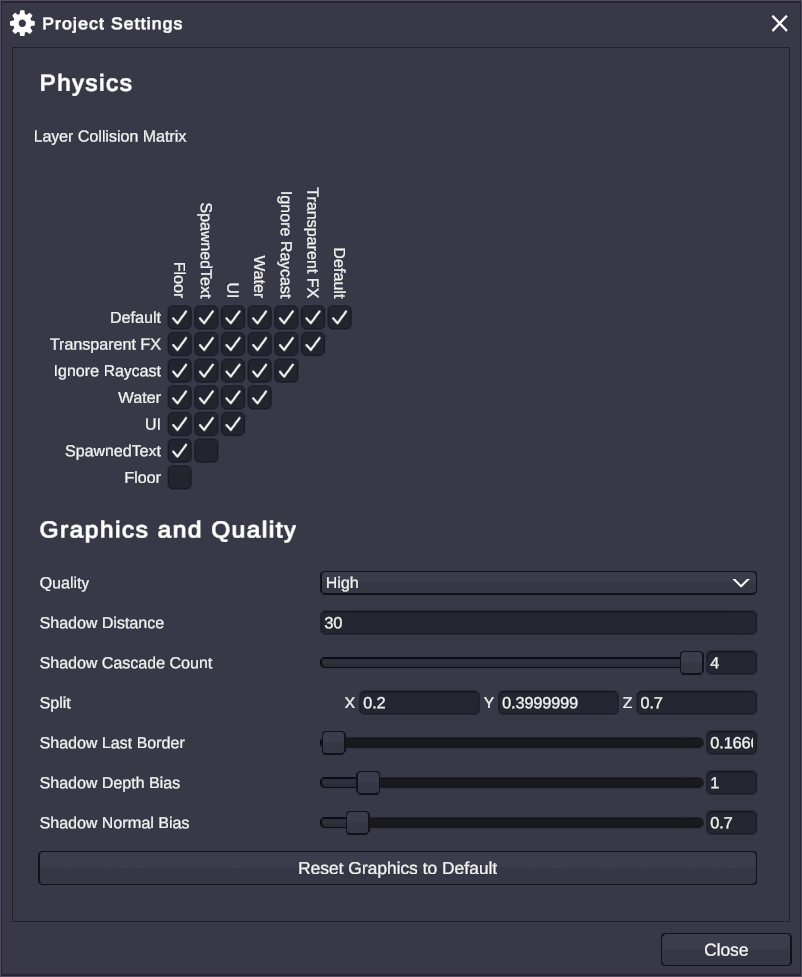
Physics
Section titled “Physics”Layer Collision Matrix
Section titled “Layer Collision Matrix”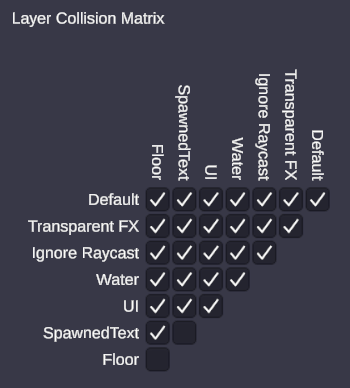
The collision matrix determines which layers can collide with each other. Use this to optimize physics performance and control which objects interact.
Each cell in the matrix represents whether two layers can collide:
- Checked: Objects on these layers will collide
- Unchecked: Objects on these layers ignore each other
Common uses:
- Prevent UI elements from colliding with scene objects
- Create “ghost” objects that pass through certain layers
- Separate player collisions from environmental physics
Graphics
Section titled “Graphics”Shadow Cascades
Section titled “Shadow Cascades”Shadow cascades control how shadow quality is distributed across distance from the camera. More cascades provide better shadow quality at the cost of performance.
| Setting | Description |
|---|---|
| Cascade Count | Number of shadow cascades (1-4) |
| Cascade Splits | Distance thresholds for each cascade level |
Cascade Count Options:
| Cascades | Best For |
|---|---|
| 1 | Best performance, lower shadow quality |
| 2 | Balanced performance and quality |
| 3 | Good quality, moderate performance cost |
| 4 | Best quality, highest performance cost |
Quality Settings
Section titled “Quality Settings”Additional graphics quality options may be available depending on your project configuration. These control rendering quality, texture resolution, and other visual fidelity settings.
🎯 Layer Collisions: Disable unnecessary layer collisions to improve physics performance, especially in scenes with many objects.
🎯 Shadow Quality: Start with 2 cascades and increase only if you notice shadow artifacts (banding or pixelation) in your output.
🎯 Testing: After changing graphics settings, preview your output to ensure quality meets your streaming requirements.